How to Add Students to StudySpaces: Complete Student Management Guide
Adding a student to your StudySpaces account is simple.
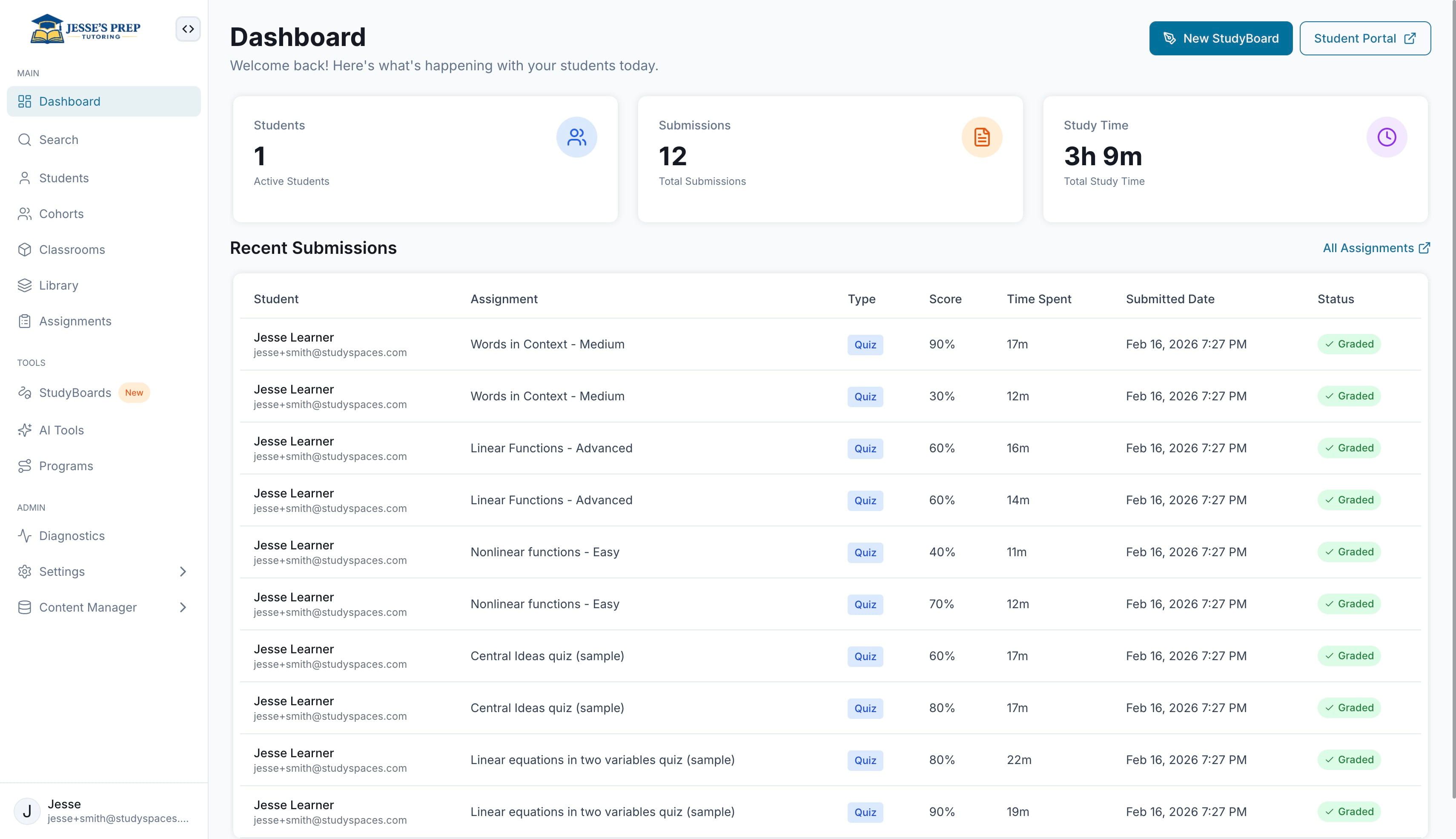
Go to Students
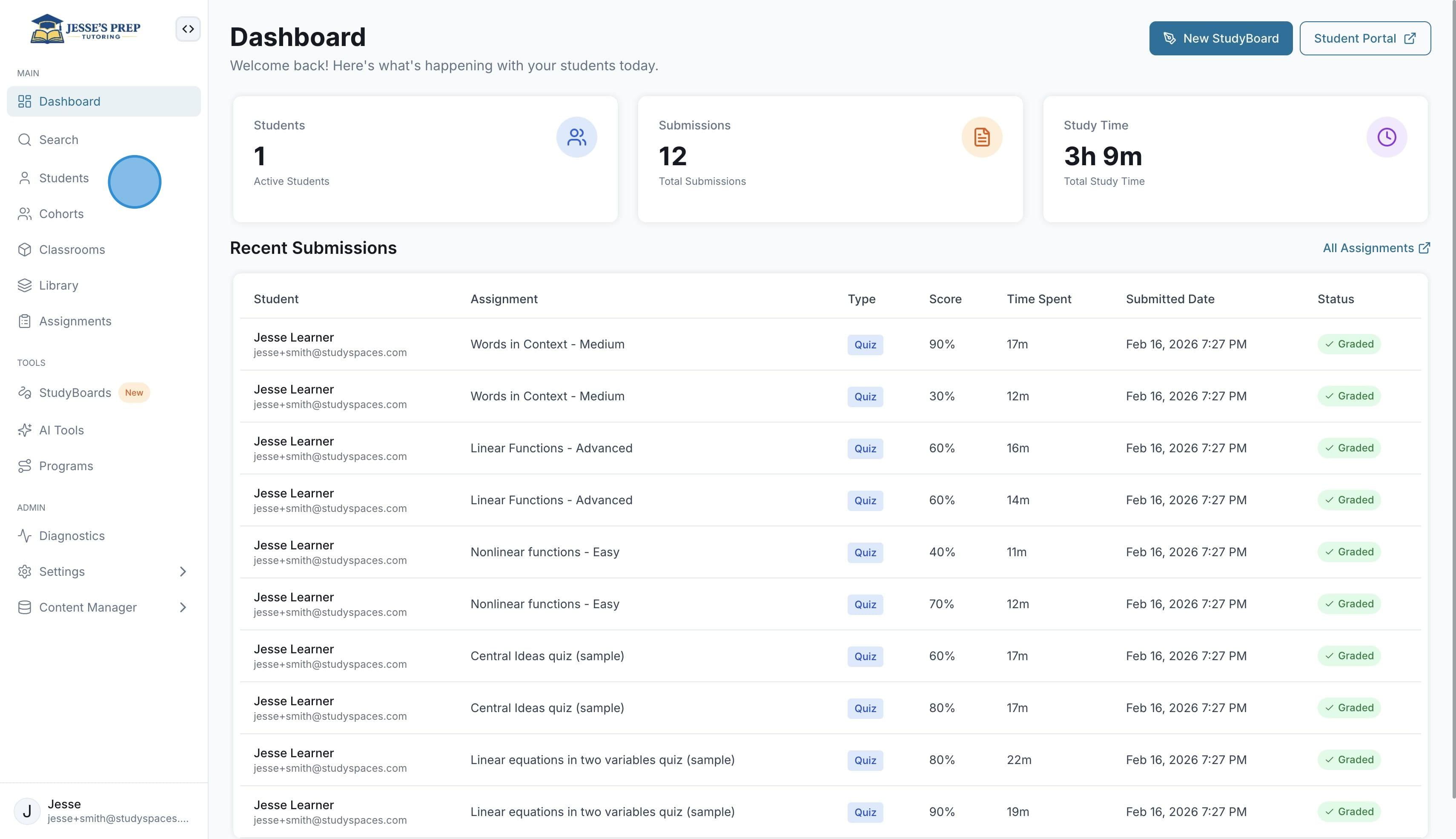
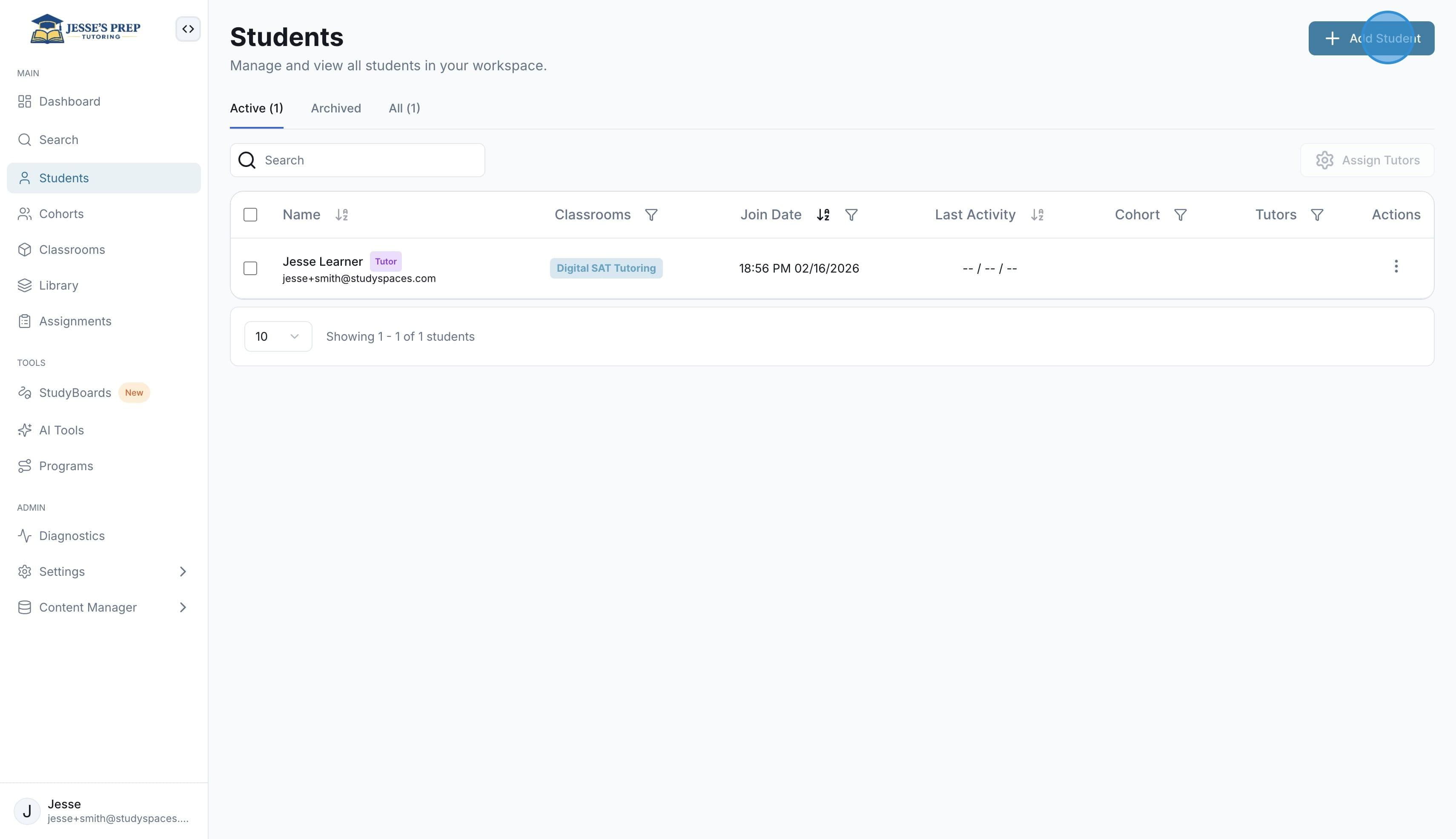
Click on "Add Student"
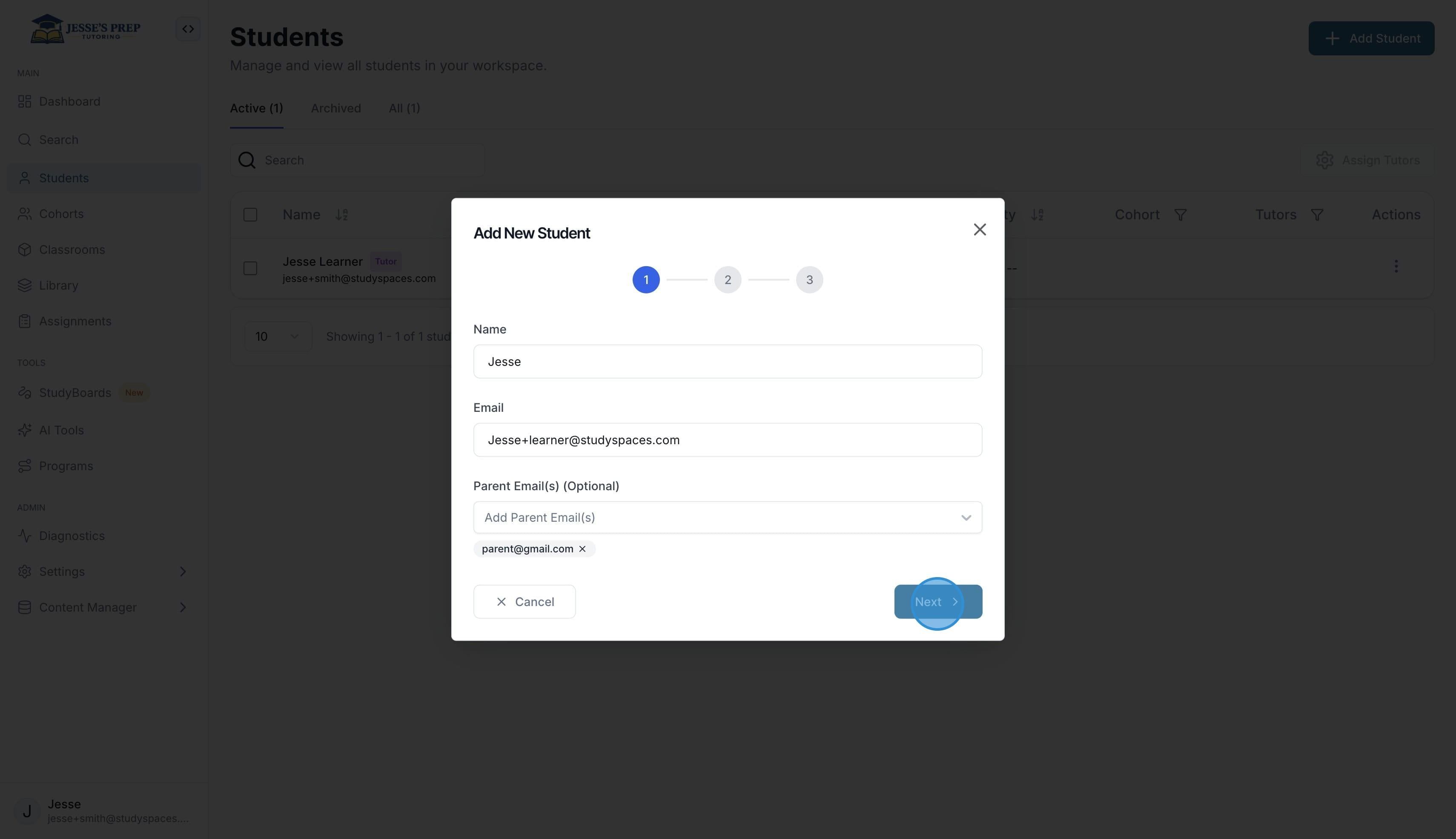
Fill in the student information along with options to add parent emails for cc’s communications, parent reports and more. Once you are ready, click “Next”
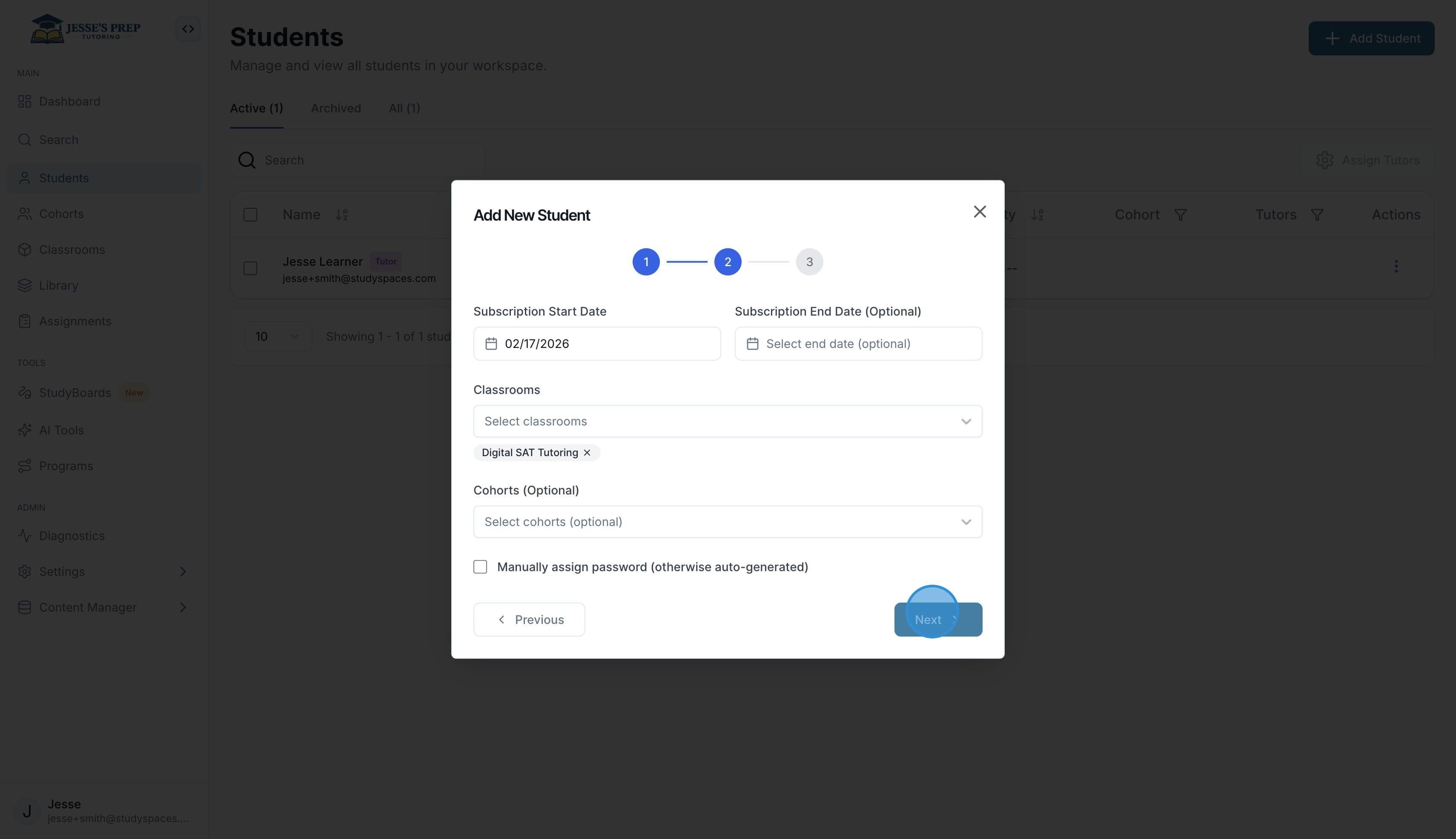
On step 2, you can decide what classroom to enroll the student on, as well as when the students’ access to the classroom starts and ends. You can also enroll the student in a Cohort as well as assign a password manually instead of an auto-generated one.
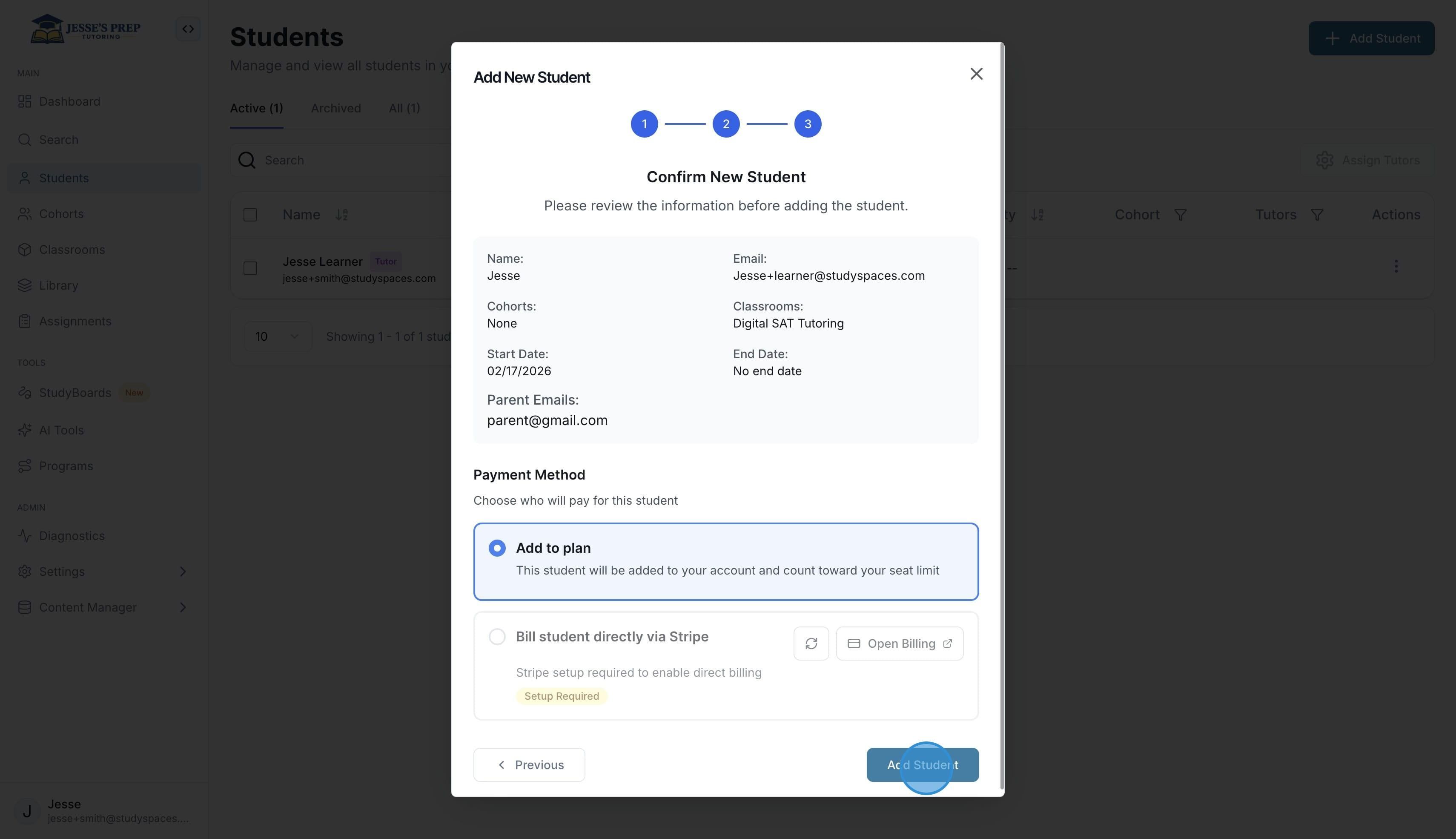
On step 3 you get to review the Student information and choose to add them to your billing plan (student will count as an active seat on your workspace) or you can choose to bill the student directly through StudySpaces ( allowing you to set a subscription price for the student to join the classroom). Once you are done, click on "Add Student"
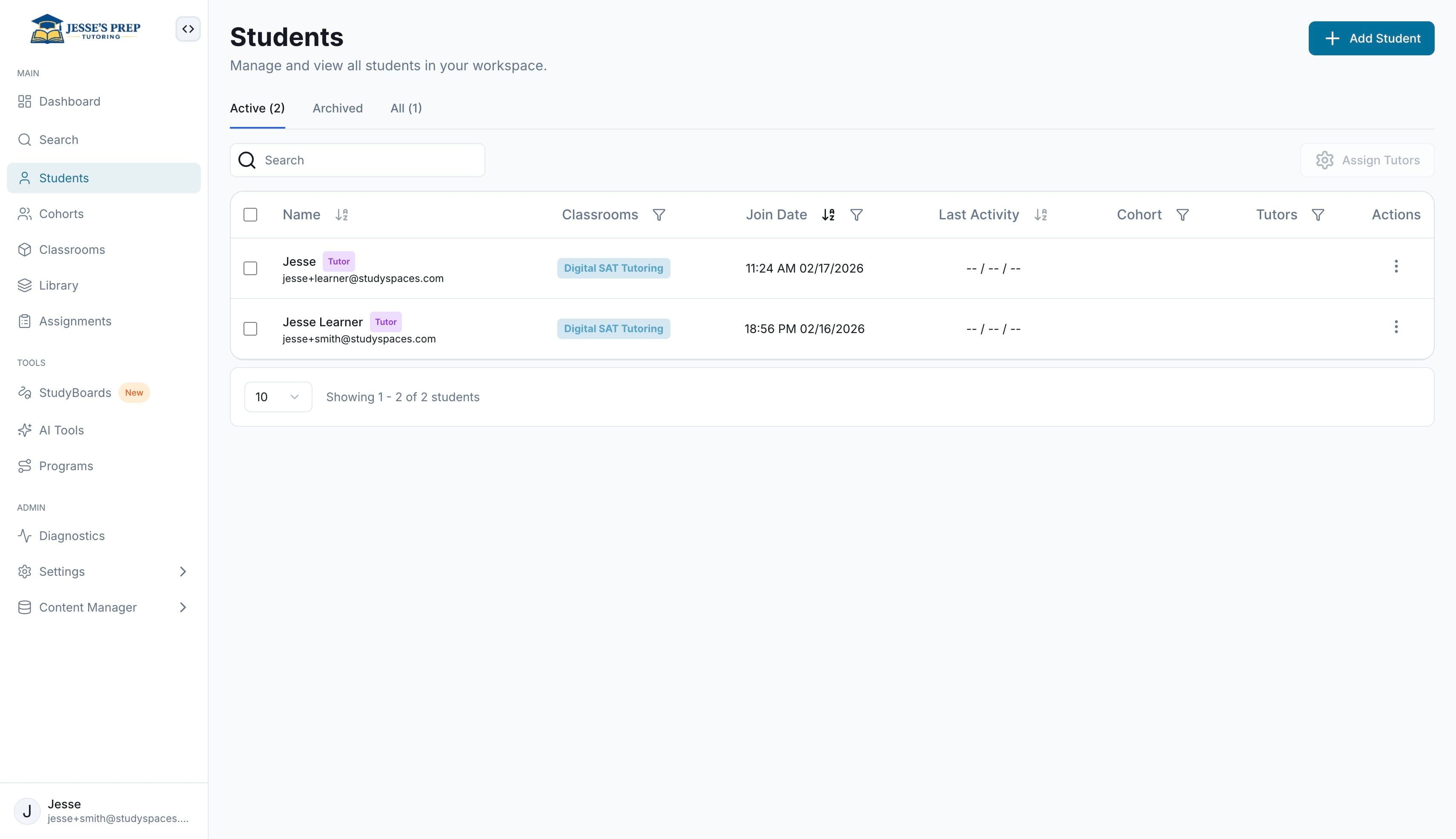
All done! The student will automatically receive an email inviting them to join the classroom, with a link to the classroom portal along with their credentials.
Was this helpful?
Still need help? Ask the team