How to Build Your Content Library in StudySpaces: Organize Quizzes, Exams & Flashcards
Start by clicking “Library” on the sidebar
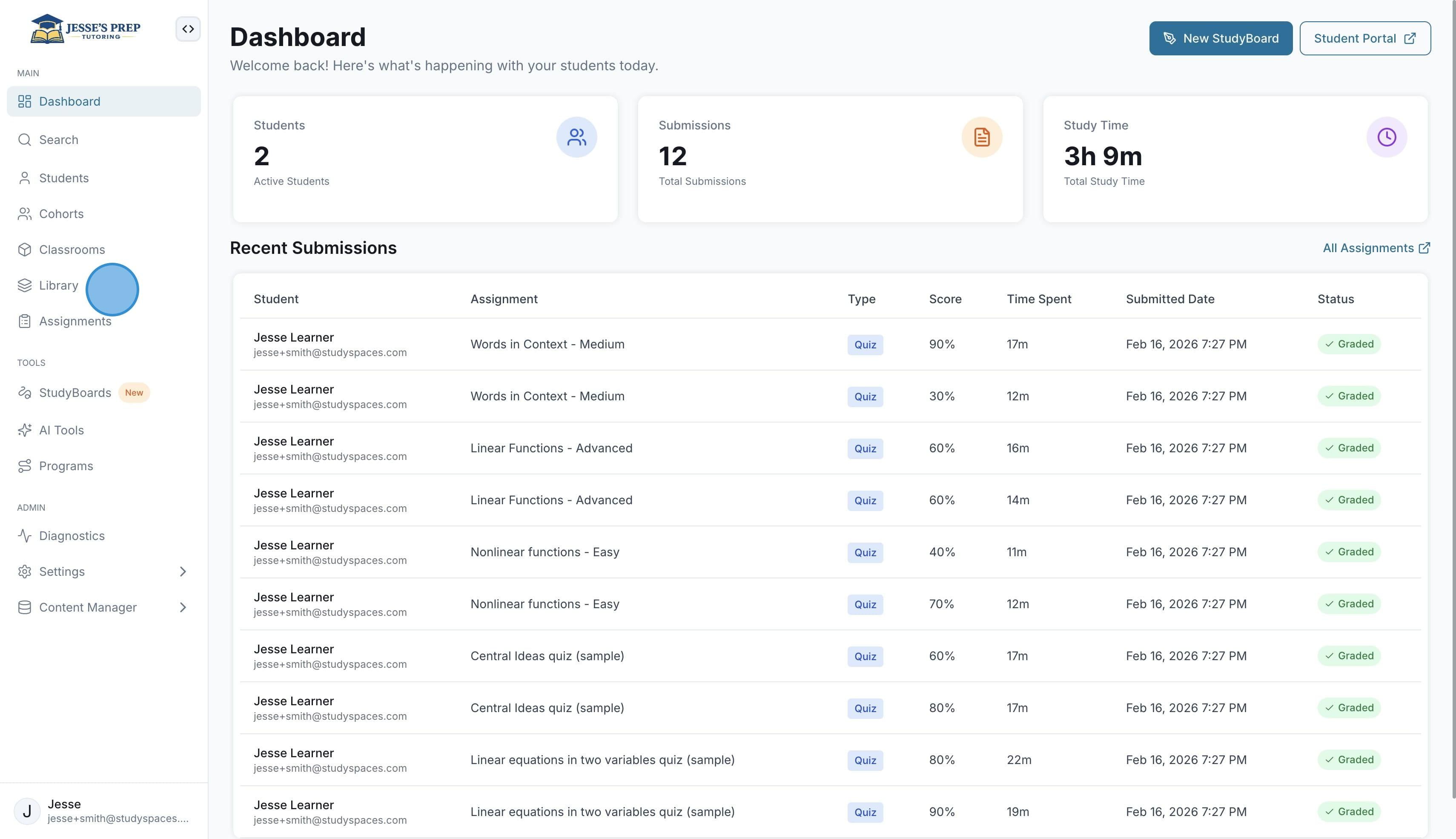
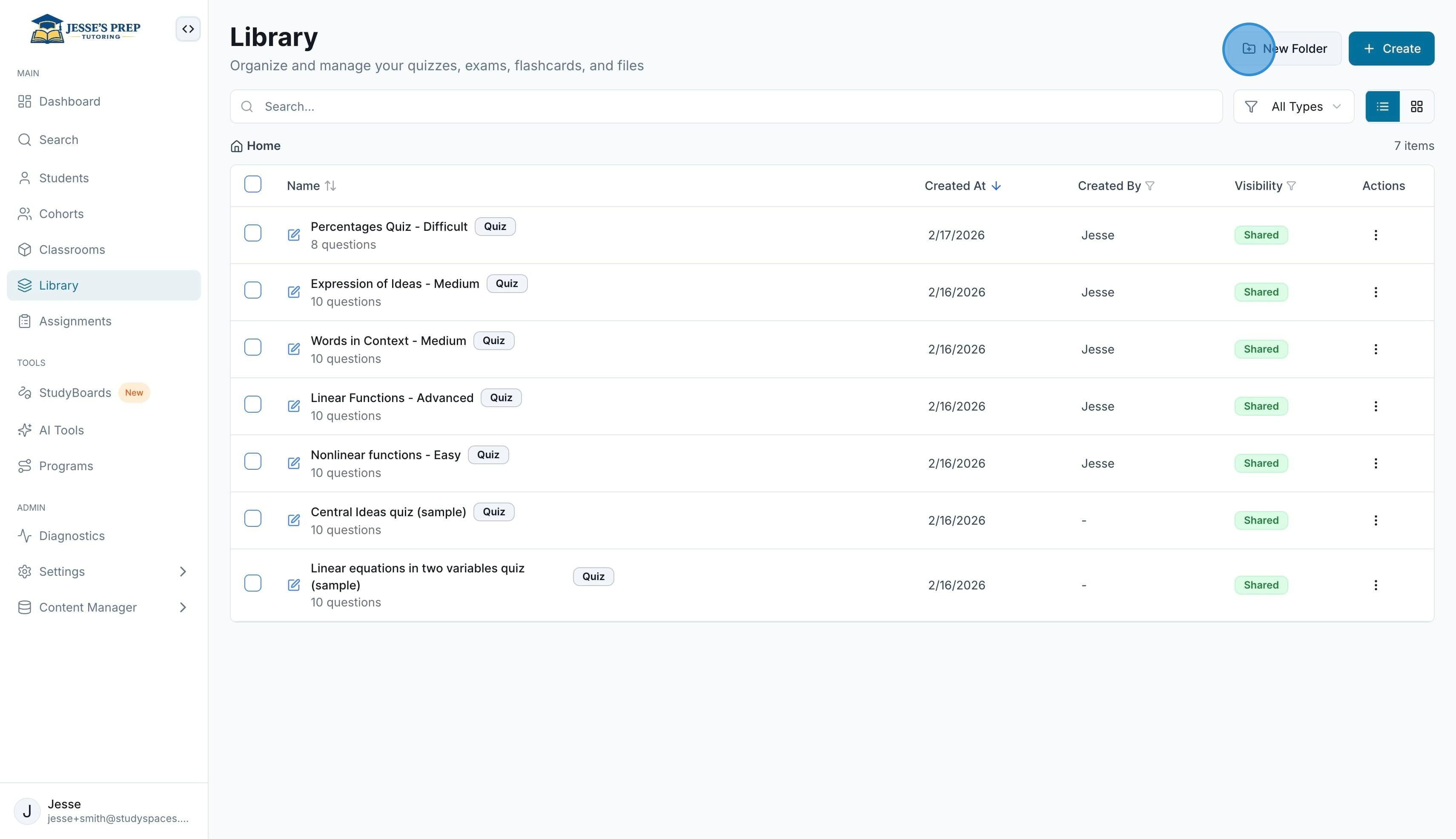
This is where all your content that is ready to assign lives, from quizzes to mock exams, files, etc. You can organize it into a folder by clicking ”New Folder”
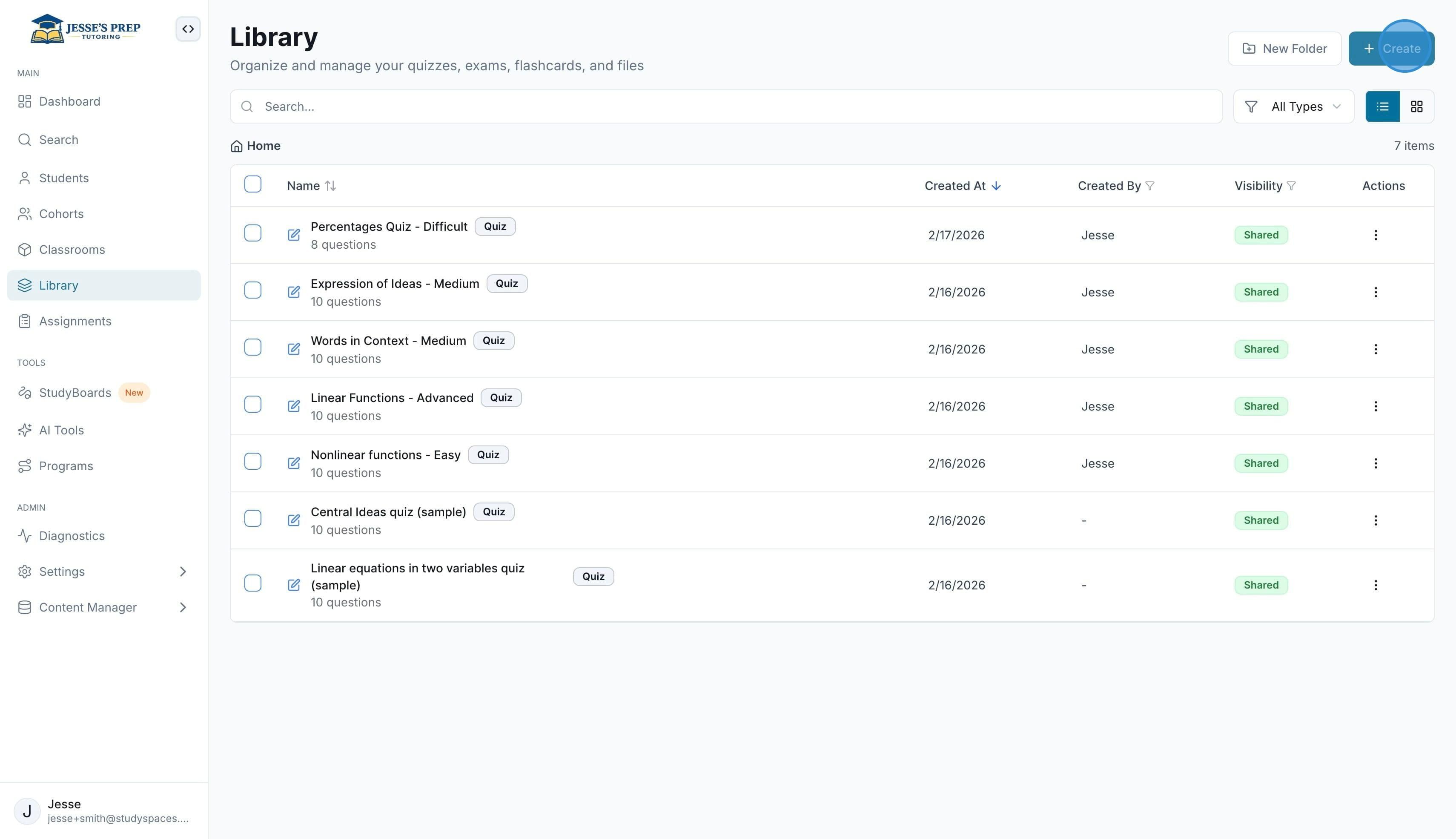
And you can create new content anytime by clicking “Create”
Choose from a range of content types, from quizzes to question banks, modules, URLs, etc.
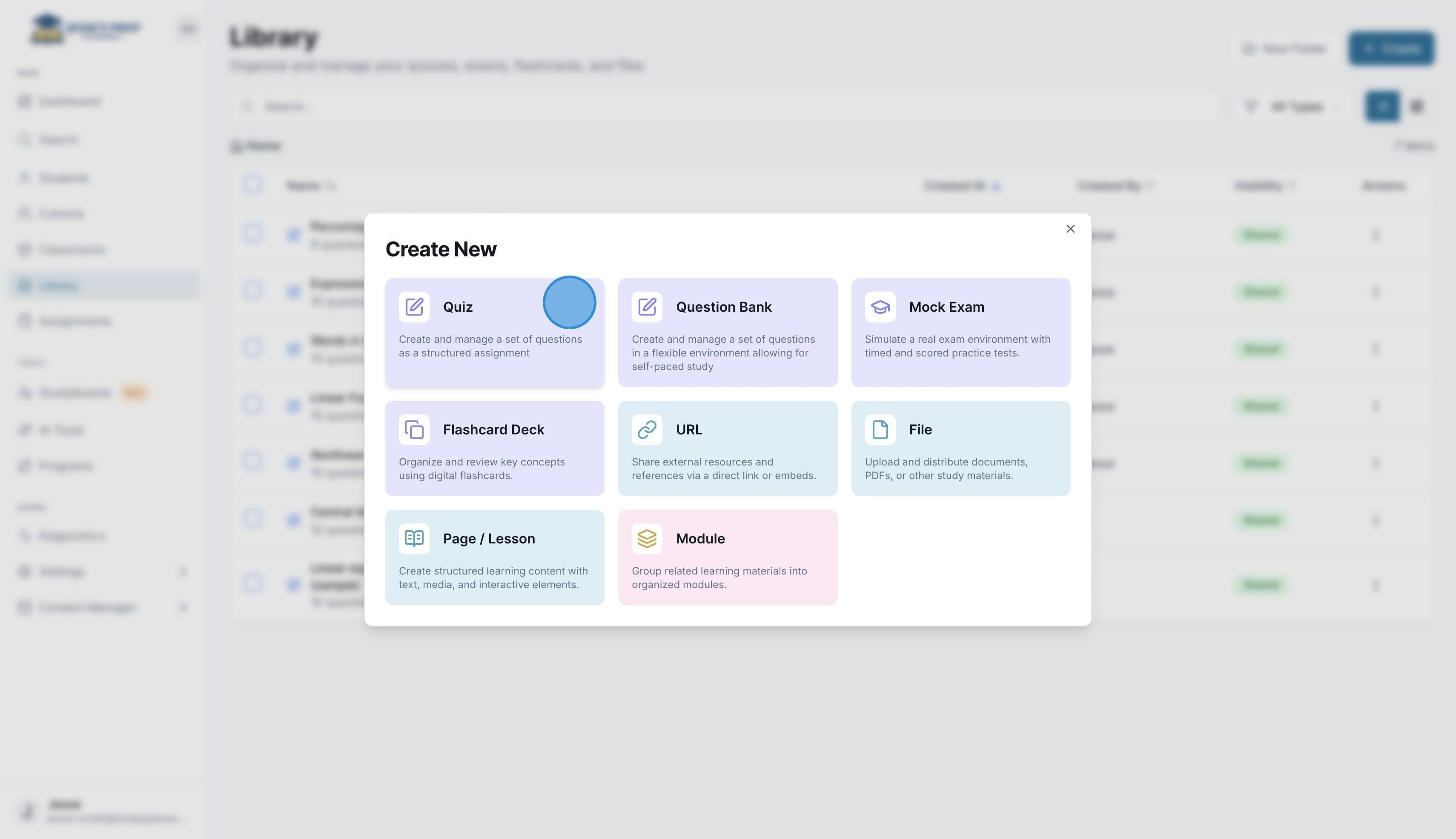
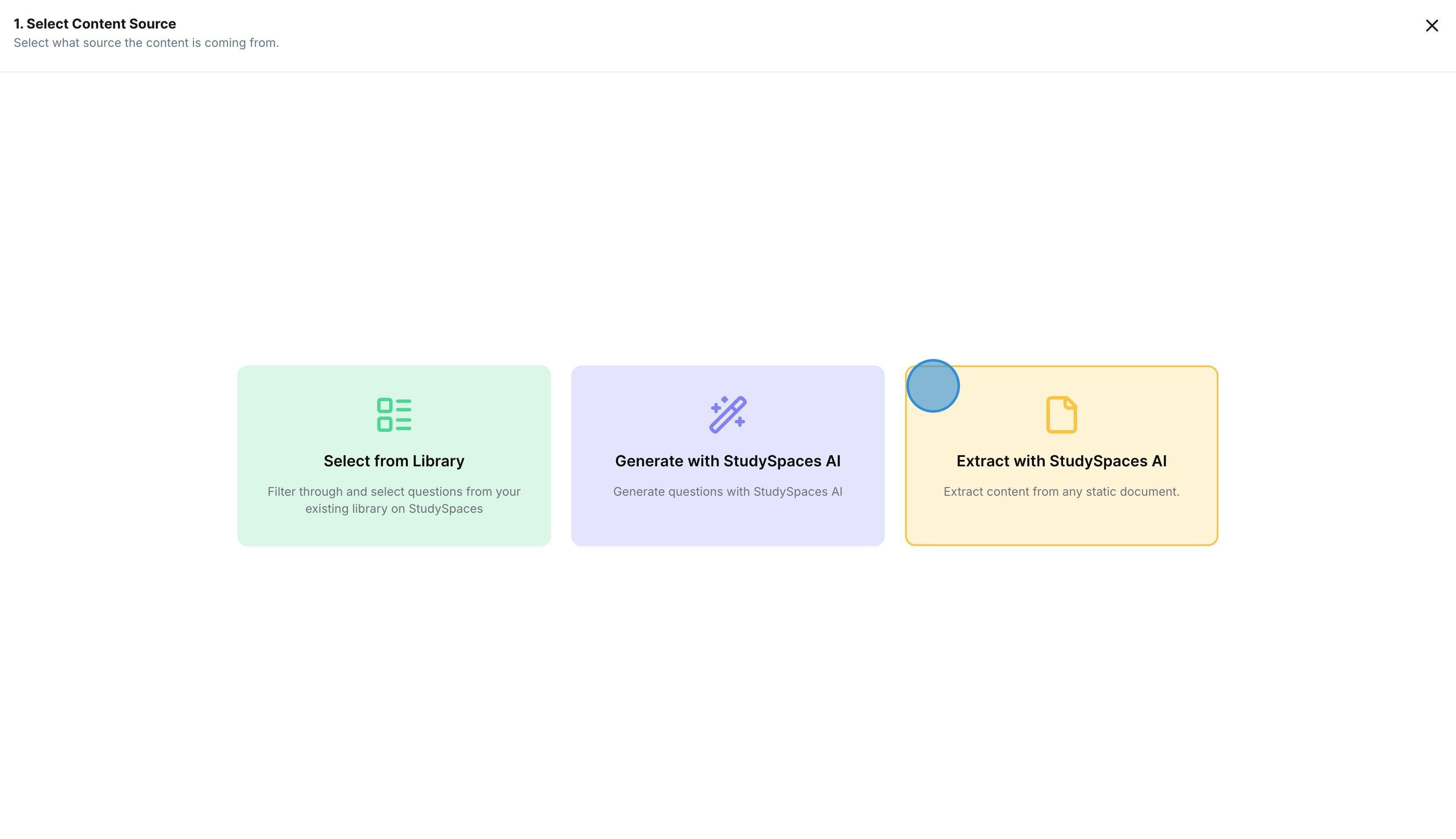
For practice content types such as quiz, question bank, mock exam, or flashcard deck, you have the option to populate them by extracting from worksheets, generating with StudySpaces AI, or picking questions/ flashcards from your questions library. Here is an example of the “Extract with StudySpaces AI” option
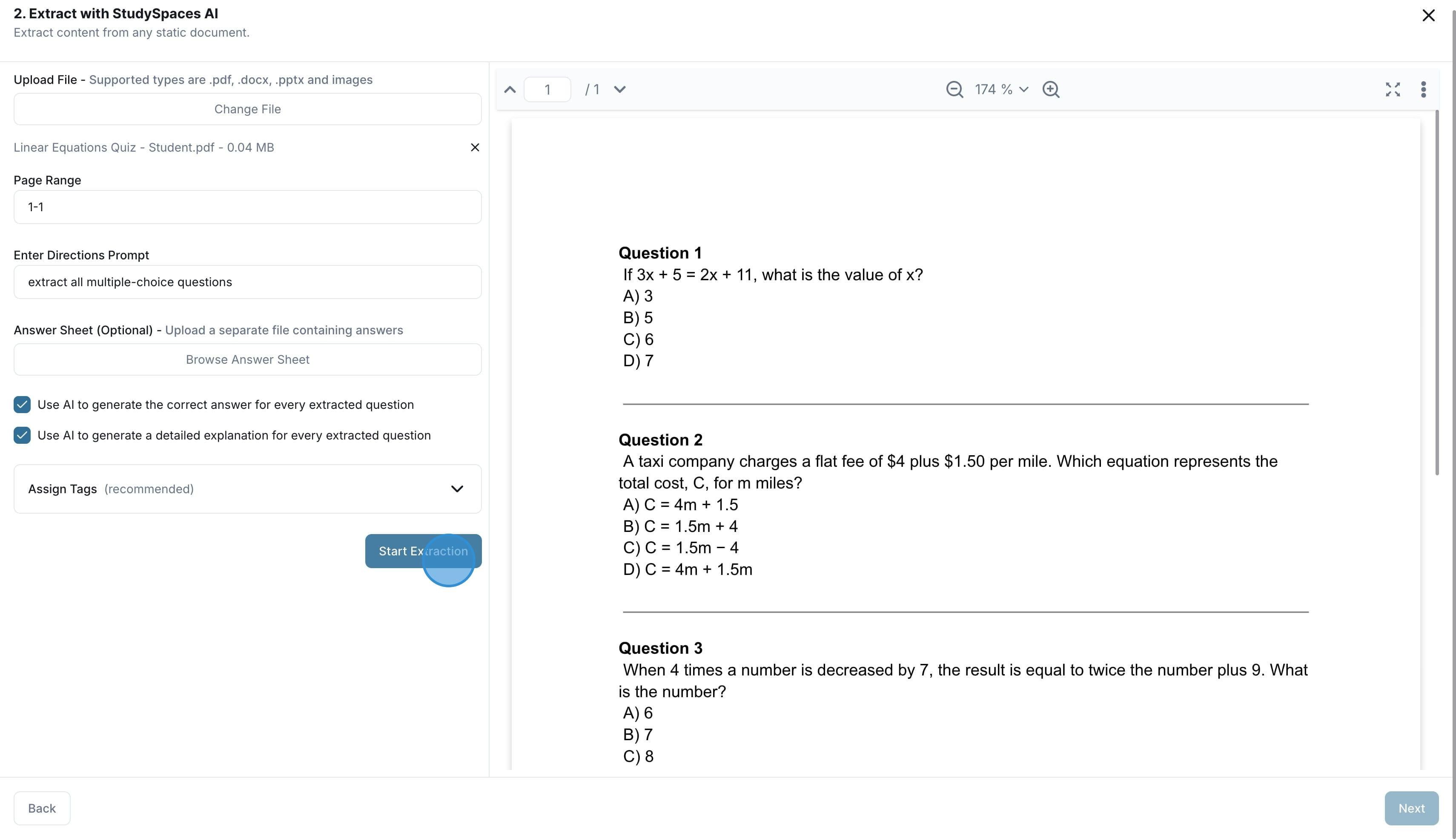
You can upload a file, select the page range of the content you want to extract, and “Start Extraction”. You also have the option to upload the answer sheet separately or use StudySpaces AI to generate answers and explanations for the extracted questions, as well as automatically assign tags to each question.
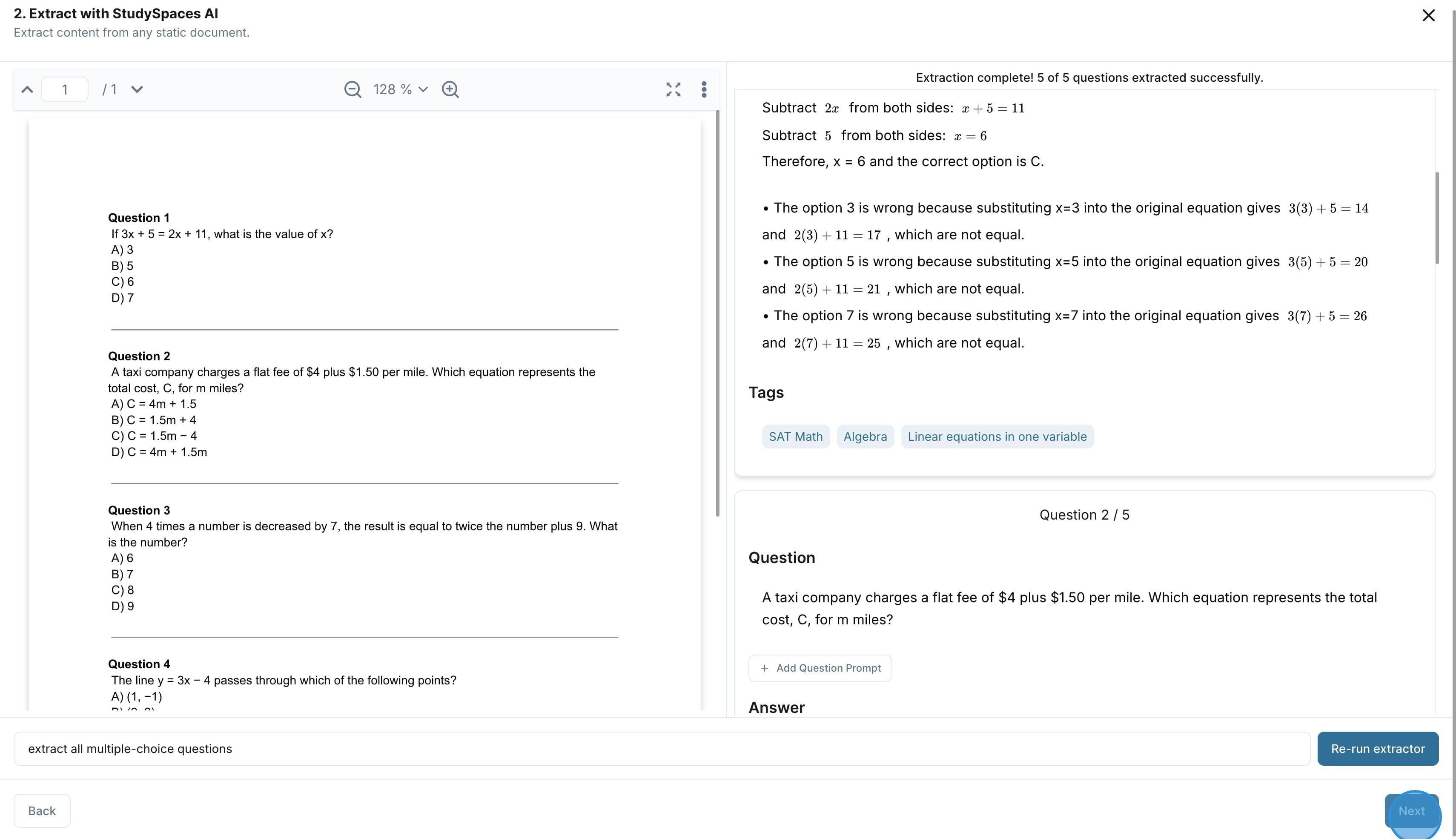
Once the extraction is done, you can review and edit each question on the spot. When you are done, click “Next”
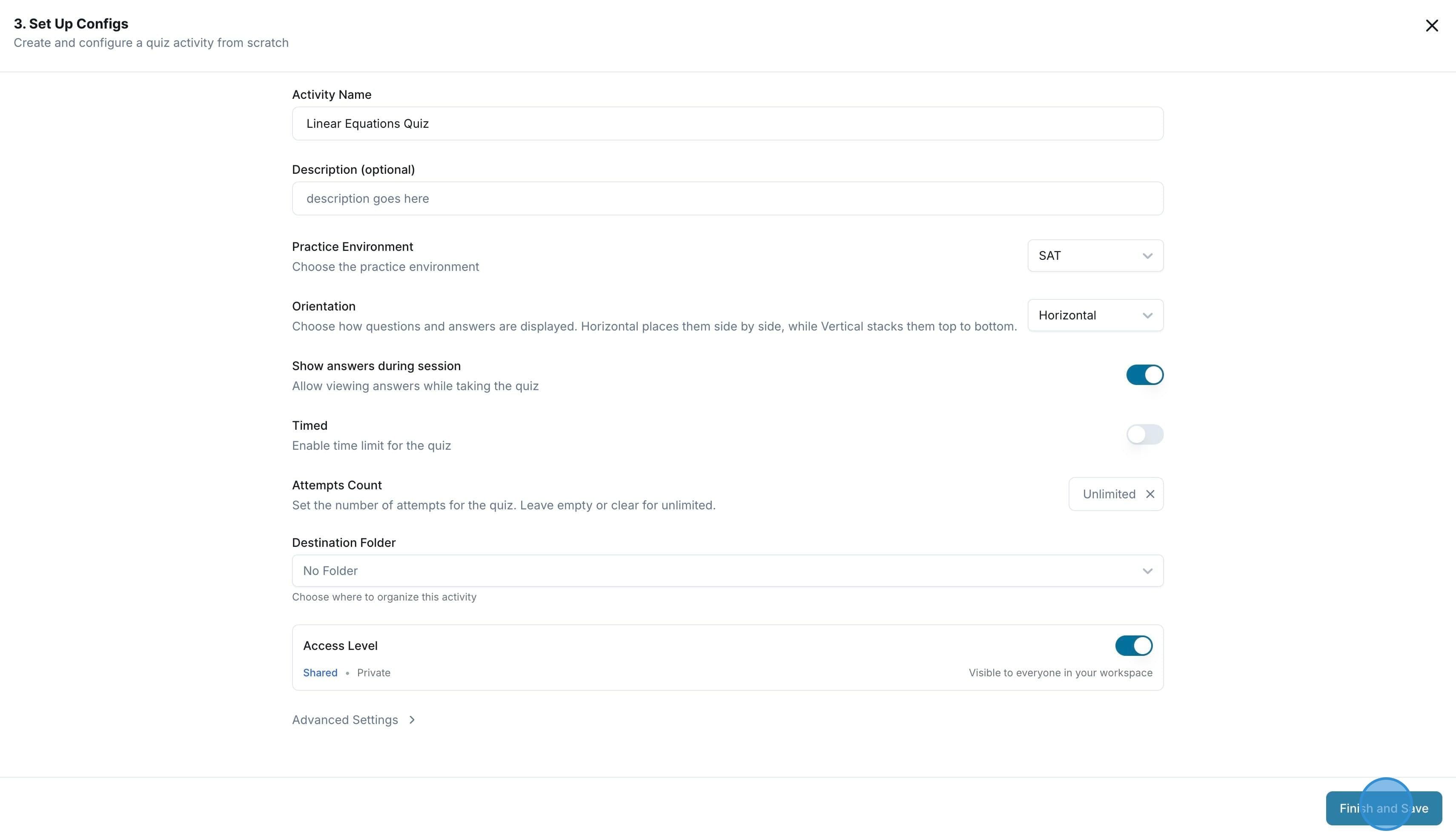
Finally, you just give your new extracted quiz a name, description, exam environment, and other configs. You can choose the Access Level on the Library to be Private (only you get to see this quiz in the library) or Shared (everyone in your workspace can use this quiz to assign to their students as well). Once you are done, click “Finish and Save”
Congrats! Now you have a new quiz in your library, ready to assign. The quiz overview tab shows general information such as average study time, time per question, total submissions, and more.
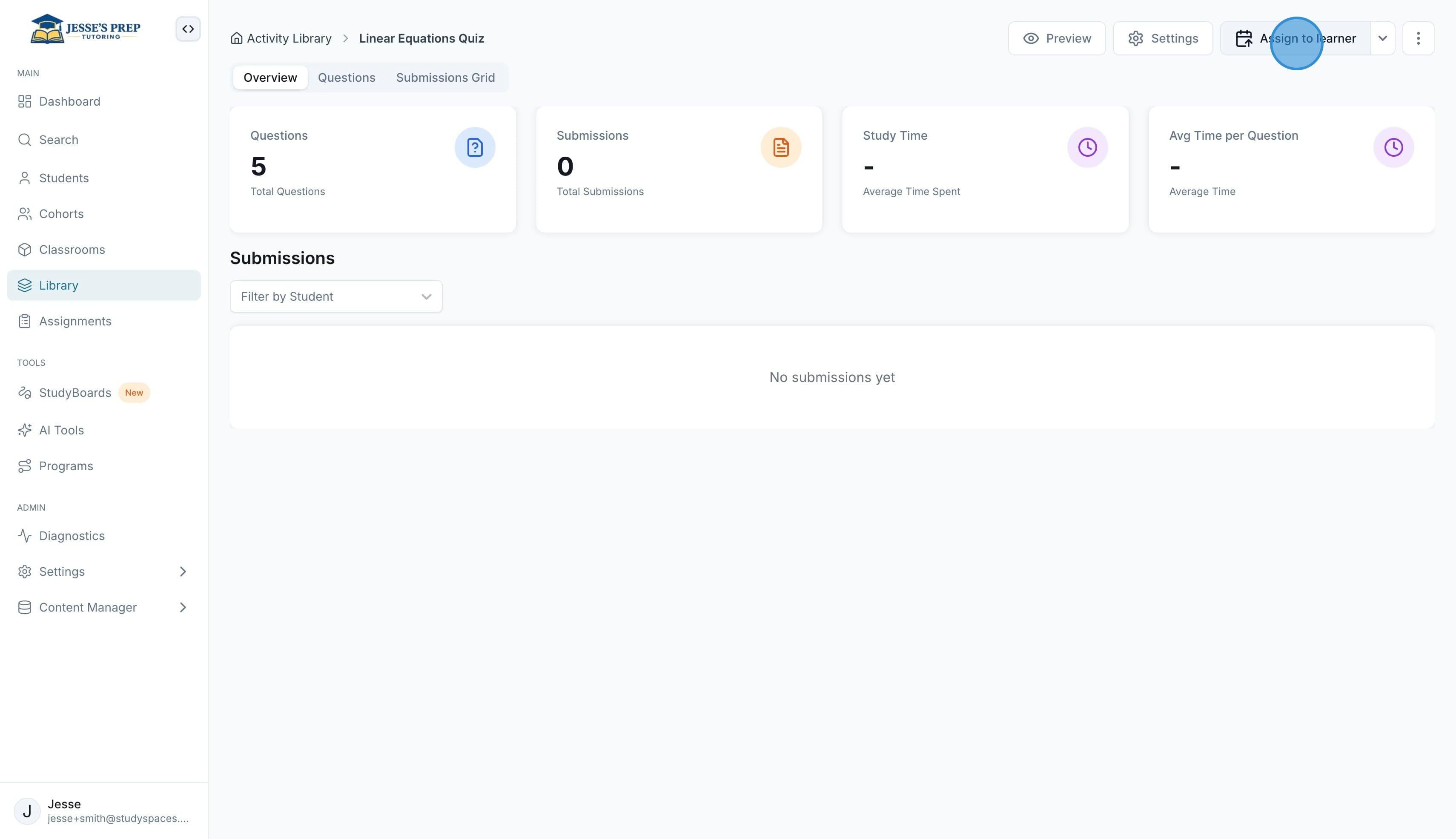
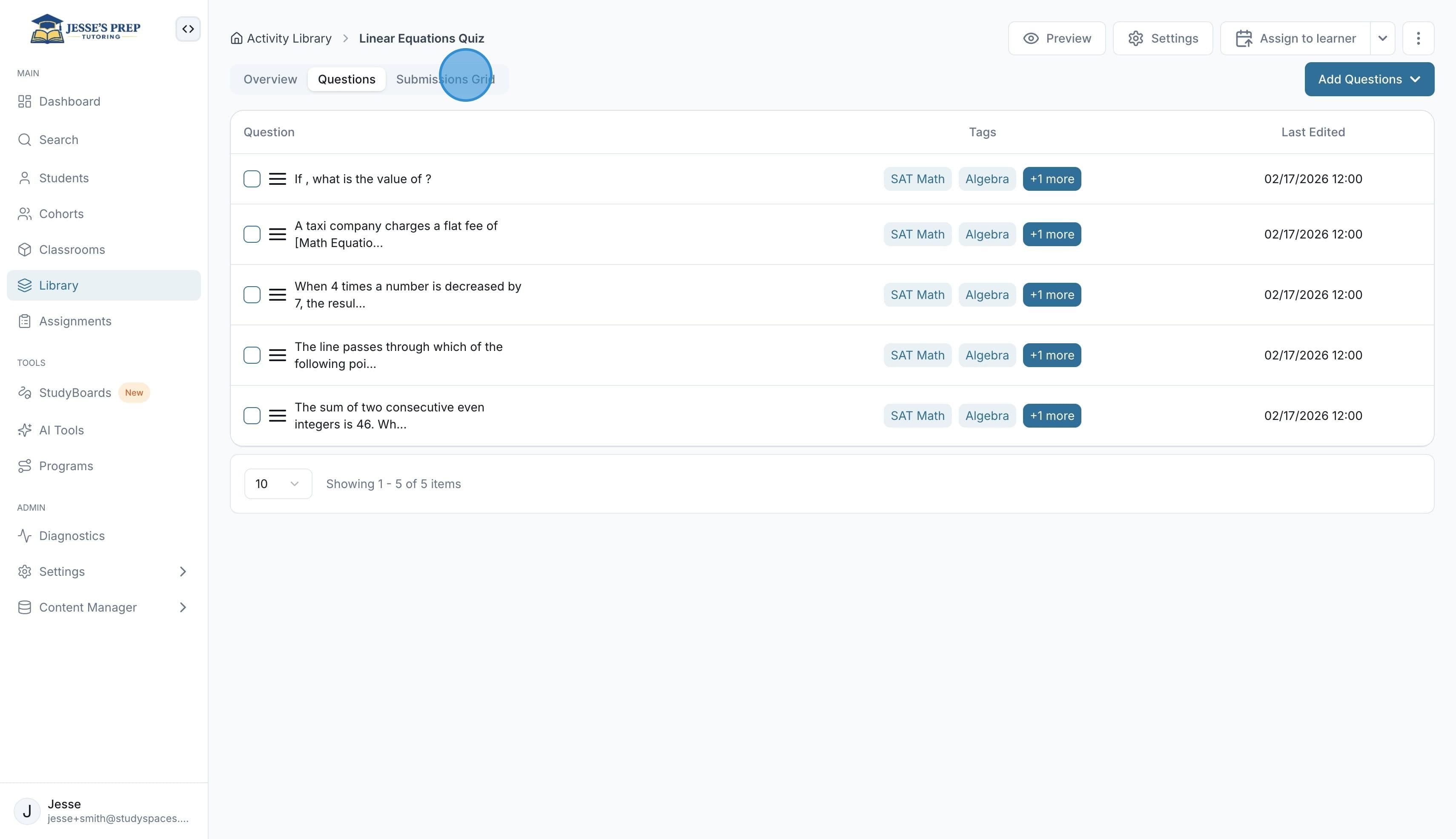
The questions tab lets you see the questions that are part of this quiz, which you can edit, remove, or add more of, as well as change the settings of the quiz.
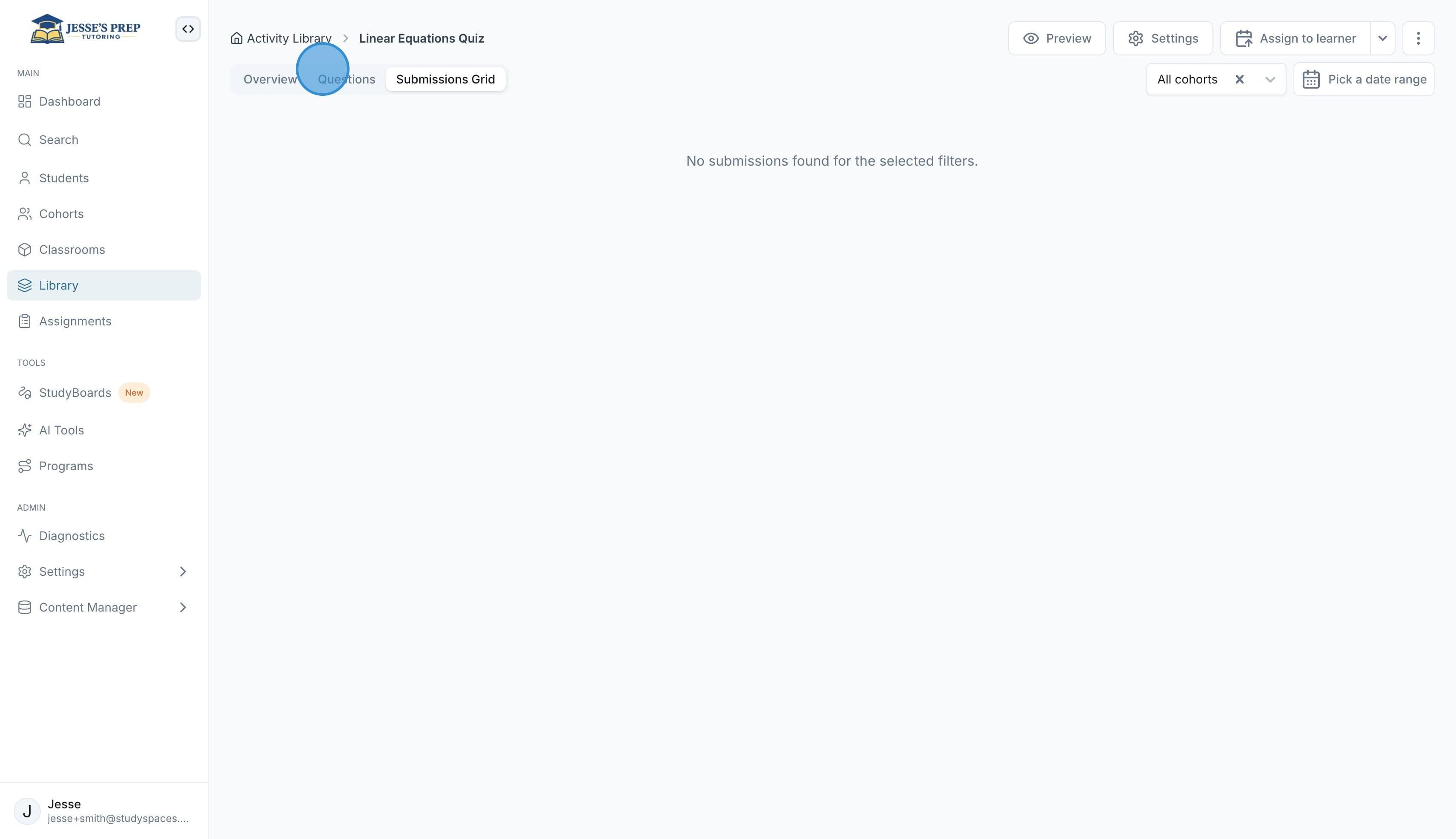
And finally, the “Submissions Grid” tab lets you see all submissions and the answer result for each question on a grid so you can identify trends in question difficulty, timing issues, and more.
Was this helpful?
Still need help? Ask the team