Per-Student Accommodations
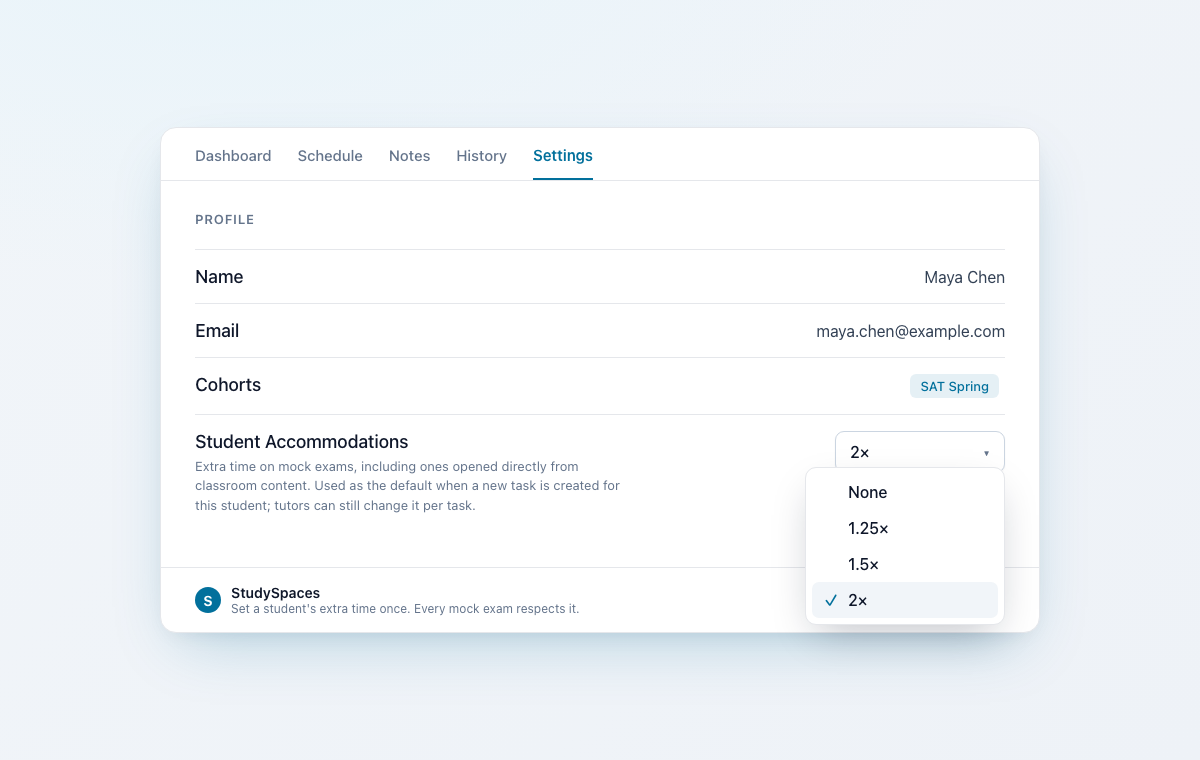
Set a student's extra time once, and every timed mock exam or quiz they take respects it.
Until now, extra time was set activity by activity. If a student had an approved accommodation, you had to remember to apply it every time you assigned timed work. Now it lives on the student.
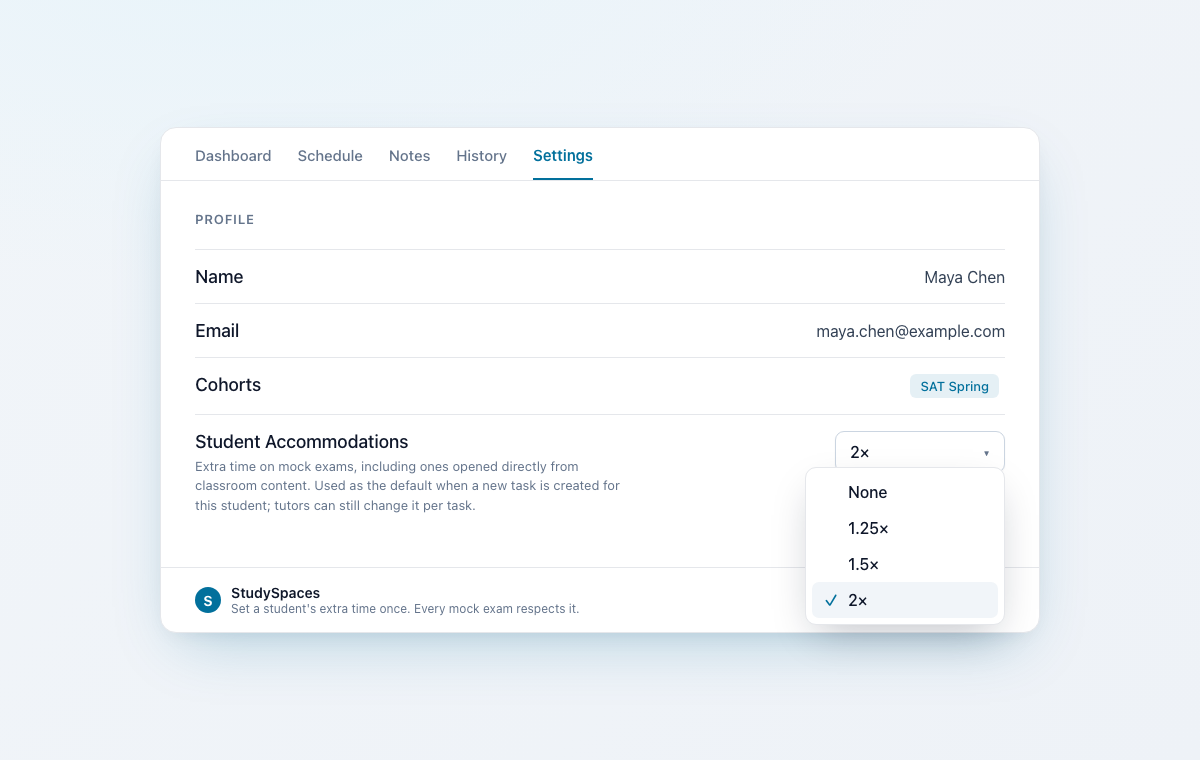
Set it once, on the student
Open any student's profile and go to the Settings tab. Under Student Accommodations, choose how much extra time they get: None, 1.25×, 1.5×, or 2×.
From then on, that extra time is applied automatically to the student's timed mock exams and quizzes, including ones they open directly from classroom content. A mock exam scales the time on each section; a quiz scales its time limit.
How it fits your workflow
It applies on its own. You do not have to set anything per assignment. The student's extra time is applied whenever they start a timed exam or quiz, including bulk-assigned work and activities opened from classroom content.
Per-task changes always win. Set a different value on a specific task and that task uses it, no matter the student's standing setting.
Existing assignments are untouched. Updating a student's accommodation applies going forward. It never rewrites work you already assigned.
Good to know
Extra time applies wherever there is a set time limit. In open practice where students choose their own time, there is nothing to extend.
The options are None, 1.25×, 1.5×, and 2×. Unlimited time is still set on the individual exam, quiz, or task when you need it.