This Week on StudySpaces: One StudyBoard for a Whole Class, Bluebook-Style SAT Notes, and More
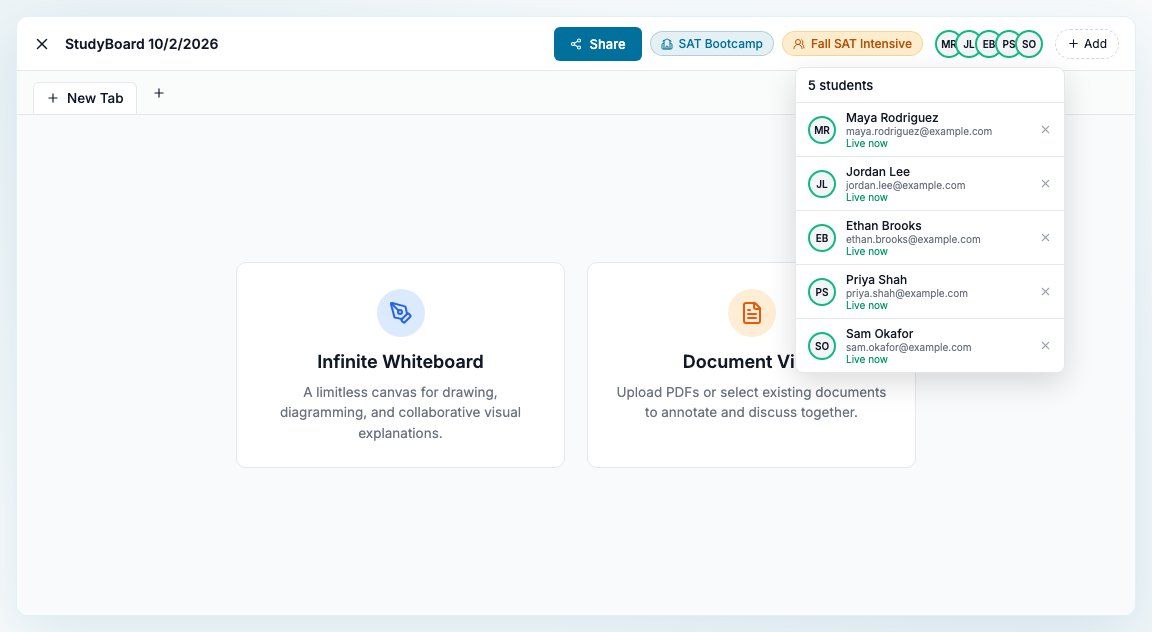
Four things this week: one StudyBoard for a whole cohort, Bluebook-style notes on the SAT, cleaner math in the question editor, and the StudySpaces API in beta.
1. One StudyBoard for a whole class
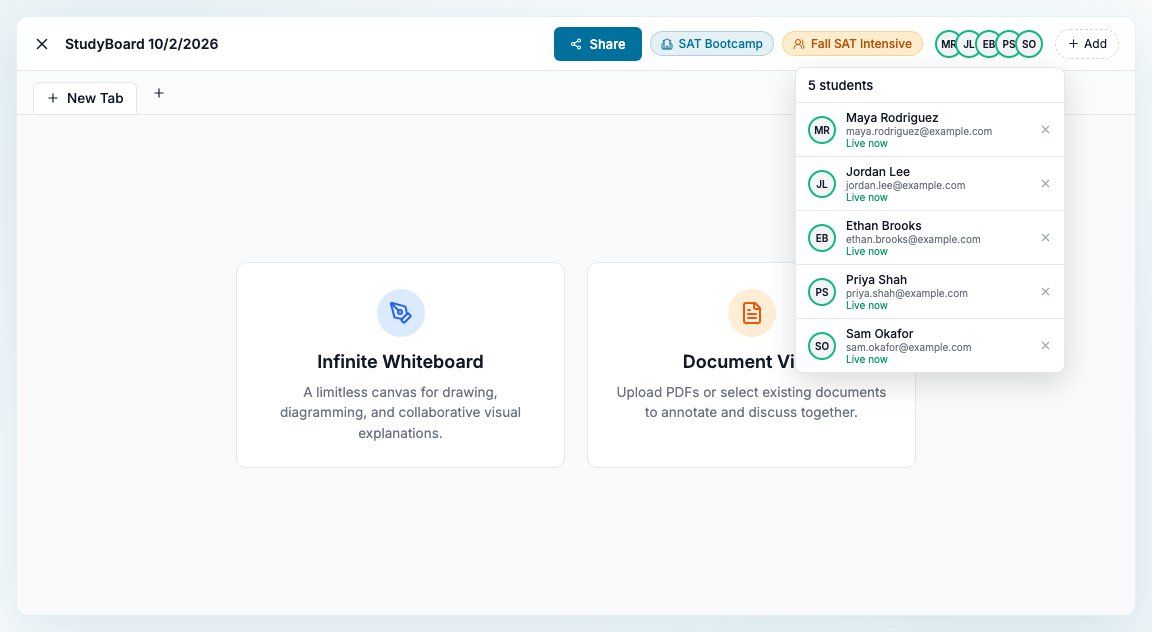
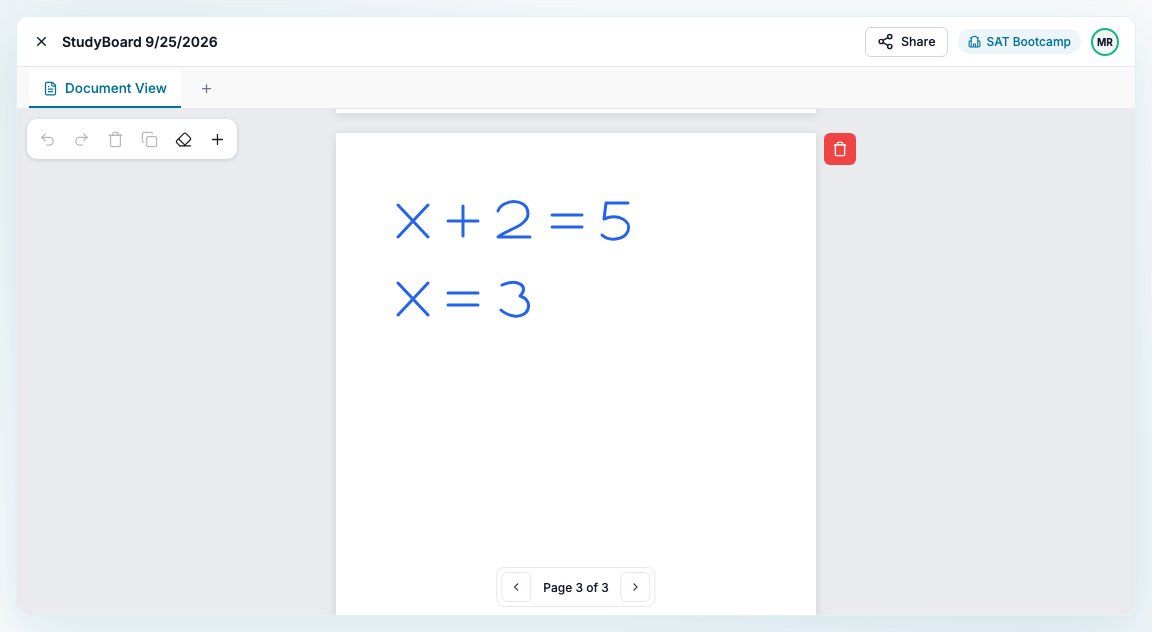
Cohorts now have a StudyBoards tab. Open a cohort from your classroom, click New StudyBoard, and every student in the cohort is already selected. A board holds up to 30 students; if your cohort is bigger, you pick who goes on it. Click Create StudyBoard and the board opens, ready for a whiteboard or a document.
Tied to the cohort. The board keeps the cohort's classroom, only cohort students can be added, and a student who leaves the cohort comes off its boards automatically.
Easy to spot. Cohort boards carry an amber cohort badge on the StudyBoards page and in a student's History, and an amber cohort chip next to the classroom chip on the board itself.
One link for everyone. Hit Share, send the link, and each student's avatar turns green as they join.
Back where you started. Closing a board you opened from a cohort takes you back to that cohort.
2. Take notes on the SAT, just like Bluebook
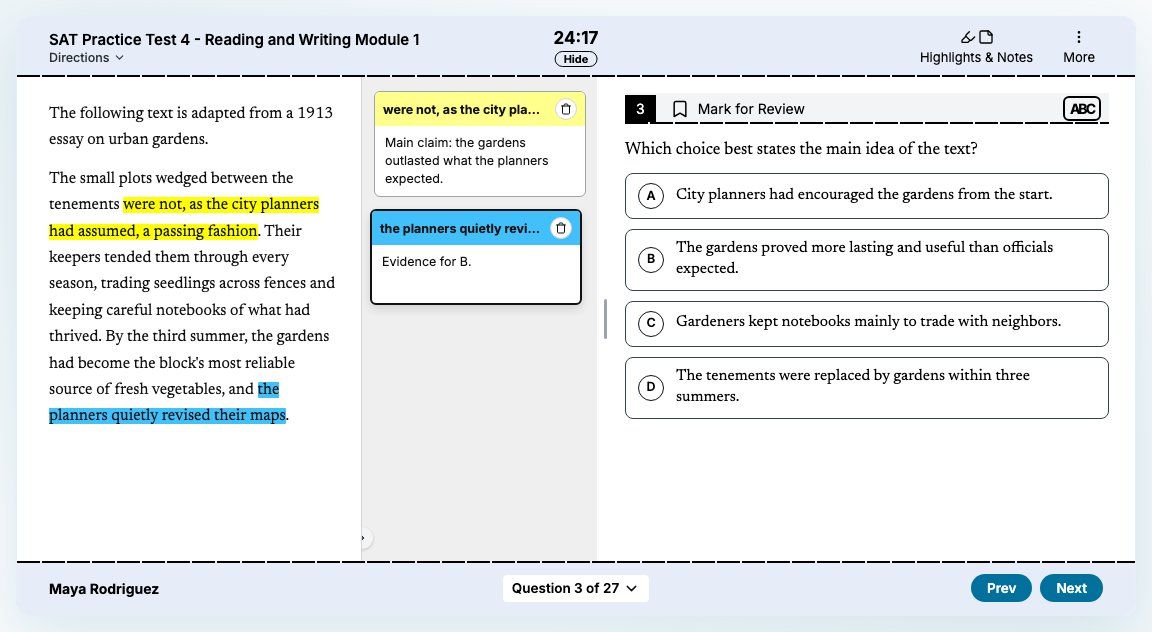
On SAT, SAT Adaptive and PSAT exams, students can now attach notes to their highlights, the way Bluebook works.
Add a note from the highlight menu. Select text and the menu shows a new note button after the colors, underline and trash. Tap it to highlight the text and open a note. If the selection already has a note, the button takes you to that note instead.
Notes sit beside the passage. Each note is a card in a column next to the passage, headed by the highlighted phrase in its highlight color. Notes save automatically, and the column collapses when you need the room.
Anywhere in the question. Notes can go on the passage, the question prompt or the answer choices.
Follows the section setting. Notes follow each section's Allow Text Highlighting switch, so they're on for Reading and Writing and off for Math.
Tutors see them too. Every review of the attempt, in progress or finished, shows the student's highlights and notes read-only.
Along the way, typing the letters a to d in a note no longer picks an answer choice.
3. Math that looks the way you meant
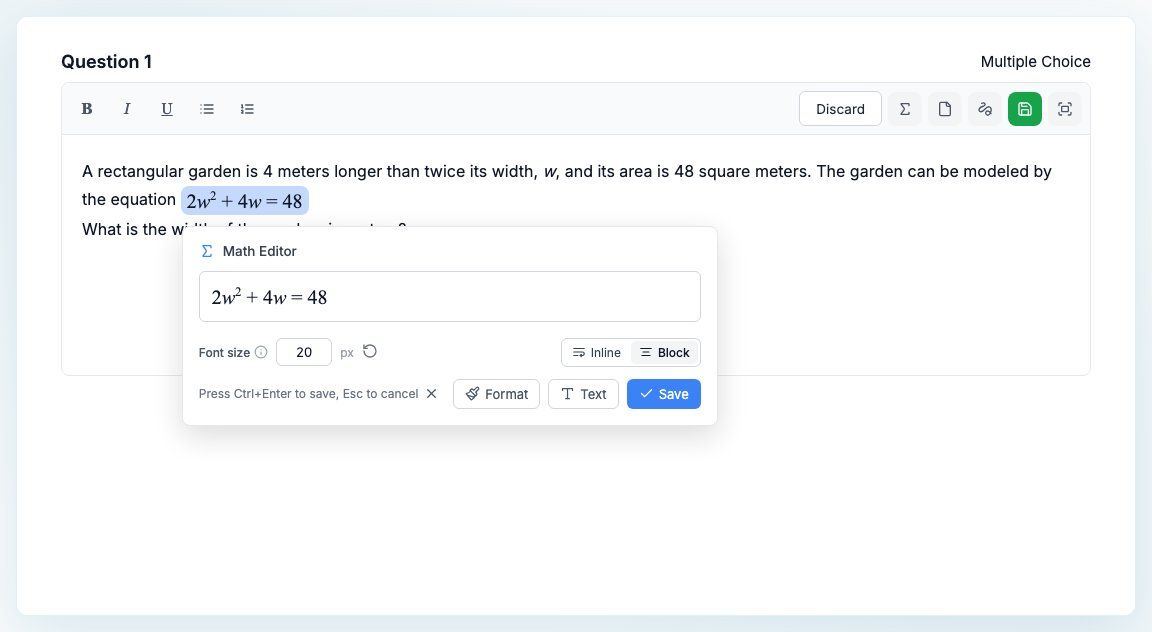
Equations in the question editor got a round of improvements.
Block equations. Click an equation and the Math Editor now has an Inline / Block switch. Block puts the equation on its own line, centered by default. Students see it that way, and it keeps its own line on StudyBoards and in PDFs.
Equations select like text. Drag right across them, copy them with the text around them, or delete them with Backspace.
Format an equation. The new Format button closes the Math Editor and opens the formatting toolbar for that equation, so you can highlight, color or align it.
Alignment has its own button. The formatting menu now has an align button that shows the current alignment.
Color pickers fixed. The highlight picker shows the current color, and picking a swatch fills in its value so you can confirm in one click.
4. The StudySpaces API (beta)
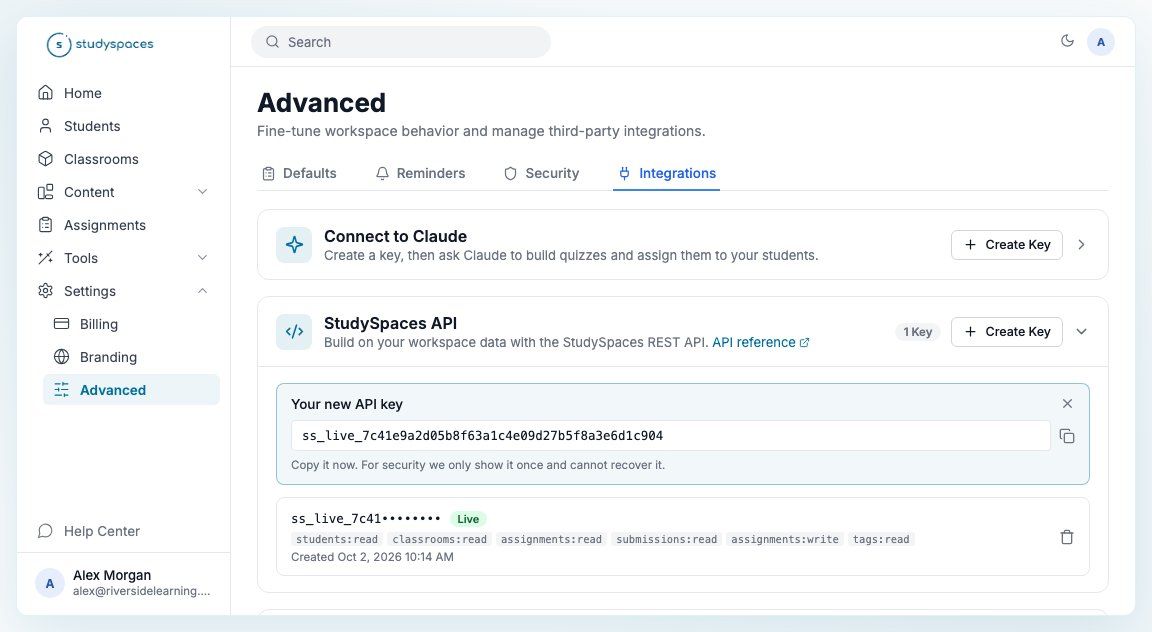
The StudySpaces API is in beta. If you'd like access, reach out to our team and we'll turn it on for your workspace.
The API lets you use your StudySpaces data outside StudySpaces: in a spreadsheet, a custom dashboard, or another tool you run your business on. Once it's on, owners and admins get a StudySpaces API card. Owners find it under Settings, Advanced, Integrations, and admins under Settings, Integrations.
Choose what each key can do. Read access covers students, classrooms, assignments and submissions (tags are always included). Write access lets a key create quizzes and add activities to classrooms, assign activities to students and remove unstarted assignments, or restore archived students.
Copy it once. The full key is shown one time only. After that you see its prefix, scopes and creation date, and you can revoke it whenever you like. Each workspace can have up to 5 active keys.
Build what you need. Pull rosters, scores, submissions and mock exam results into your own dashboards and reports, sync StudySpaces with other tools, or build and assign quizzes from your own systems. The API reference link on the card documents every endpoint.
Question text stays private. The API never returns question text.