This Week on StudySpaces: A New Look for Your Library, Cohort Notes, and More
Four things this week: a Library that finally sorts itself out, notes that cover a whole cohort at once, a record of what happened during an exam, and a filter for the questions a student got stuck on.
1. Your Library got a new look
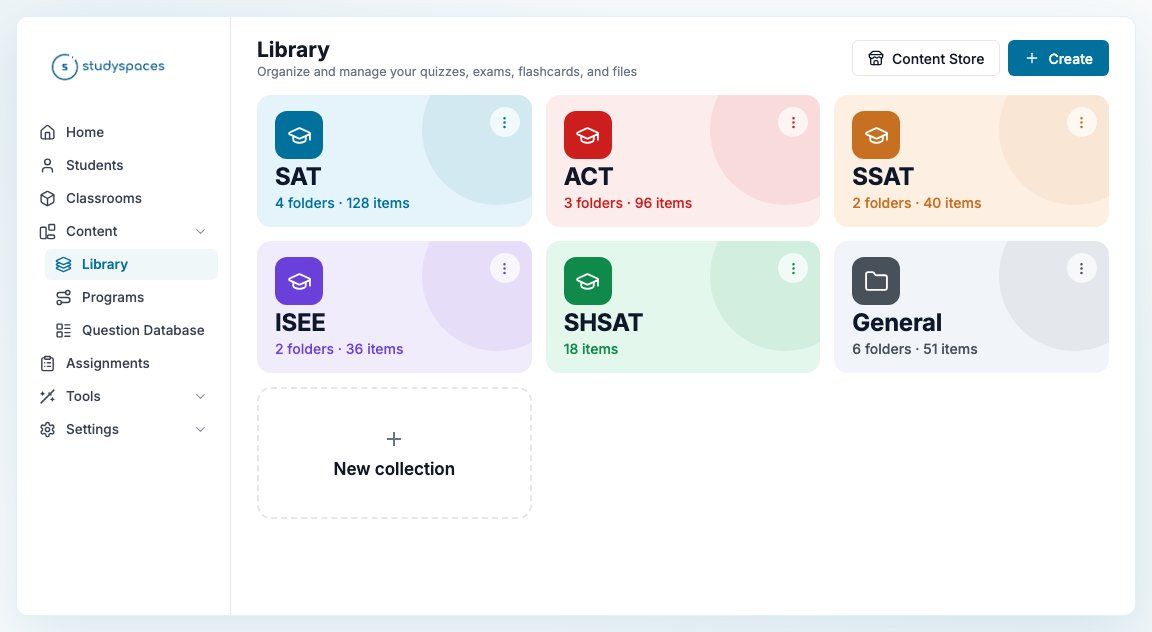
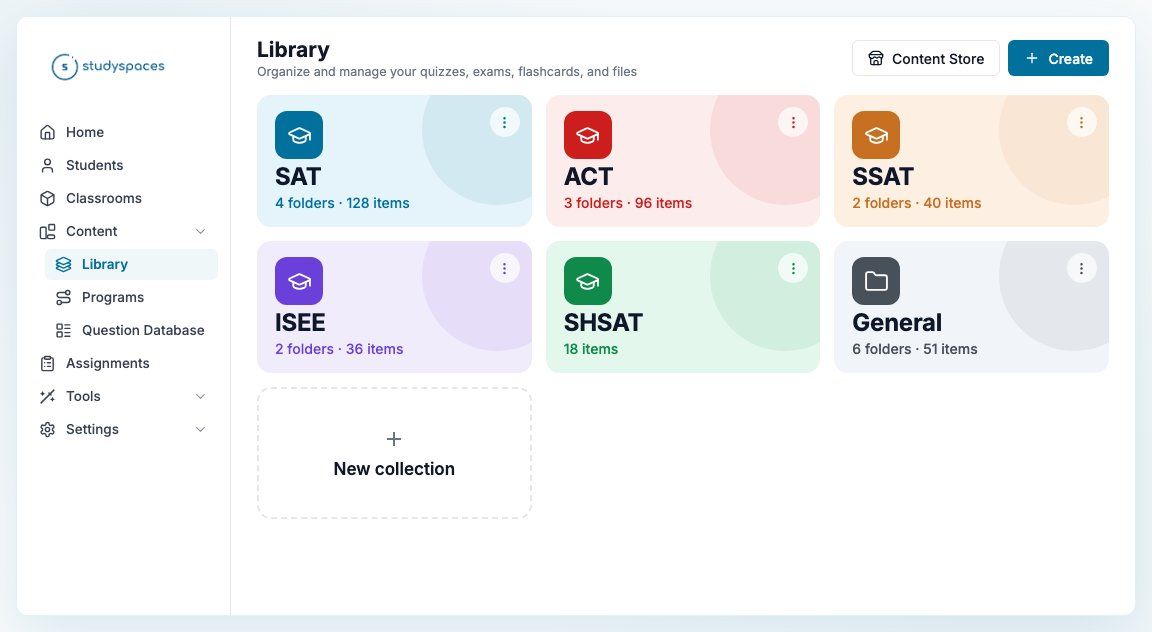
The Library home used to be one long flat list. Now it opens as a set of cards, one per test, so SAT work sits with SAT work and you get where you are going in a click.
Each test keeps the same color everywhere you see it: SAT blue, ACT red, SSAT orange, ISEE purple, SHSAT green. Anything you have not sorted yet stays together under General, which you can position wherever you like. Open a card and the Library behaves exactly as it always has, with folders, table and gallery views, bulk actions, drag and drop and search, now scoped to what you opened.
New work sorts itself. Save an activity whose name or exam type says SAT and the save dialog already suggests the right place; activate a content pack and it lands with the rest of its test. You can rename, recolor and reorder the groups, and deleting one never deletes content, it just moves back to General. The product calls these groups collections, which is the word you will see on the "New collection" card and in the menus.
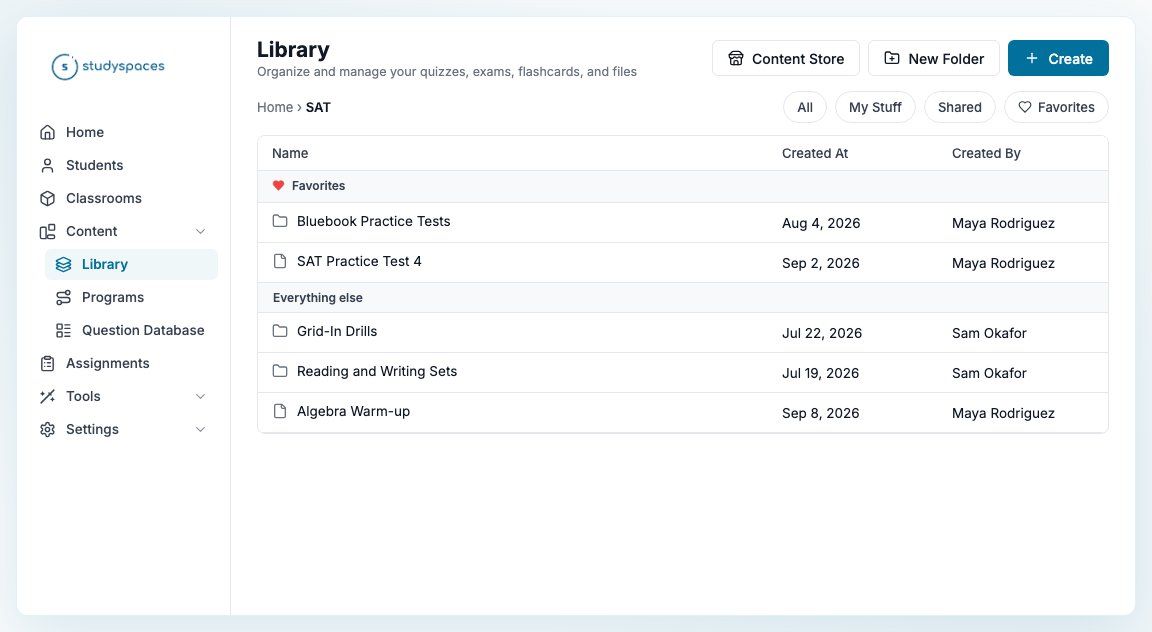
Favorites are personal to you. Pin any folder or activity and it jumps to the top under a Favorites divider, with everything else below it. There is a Favorites pill next to All, My Stuff and Shared. It filters wherever you happen to be rather than taking you somewhere new, so use it inside SAT and you see your SAT favorites, use it at the top level and you see all of them, however deeply they are buried.## 2. Notes for a whole cohort
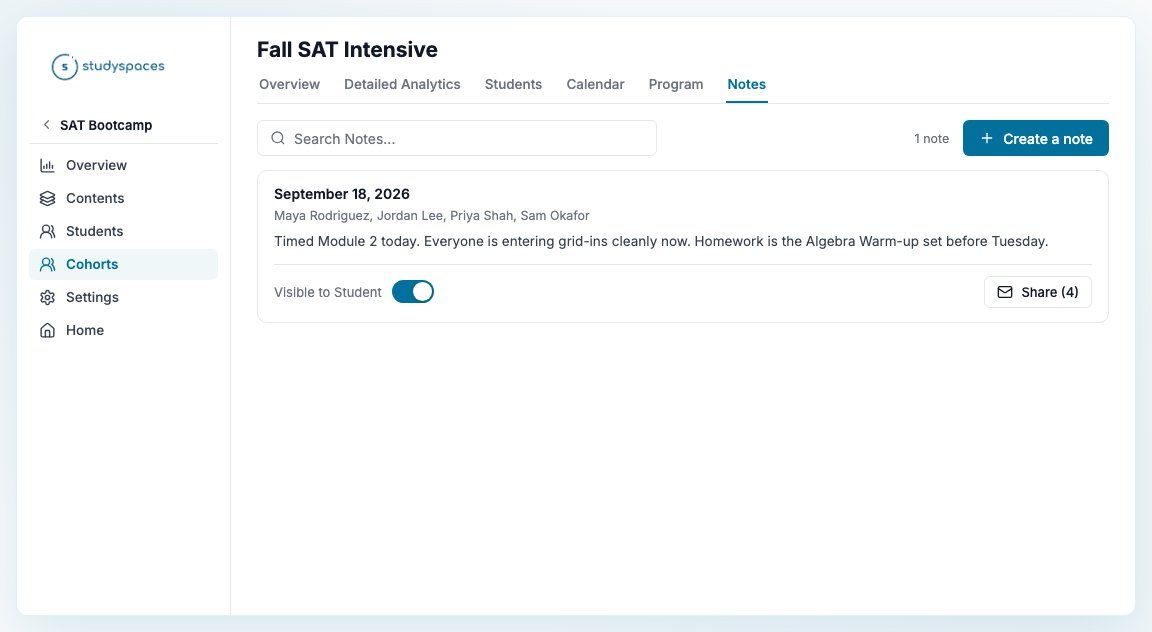
Open a classroom, choose Cohorts in the sidebar, and pick a cohort: it now has a Notes tab, right after Program. Write one session note, pick the students it applies to, and each of them gets their own copy on their own Notes tab, the same way cohort assignments fan out to individual tasks.- Edit the cohort note later and the change reaches every copy, including copies you have already emailed.
Pins and email status stay per student, so one student's pin does not move anyone else's.
Share emails each parent about their own student only, and the preview lets you step through the emails one parent at a time before sending.
A student who leaves the cohort keeps an already-emailed copy and loses an unsent one.
3. Exam Activity Log
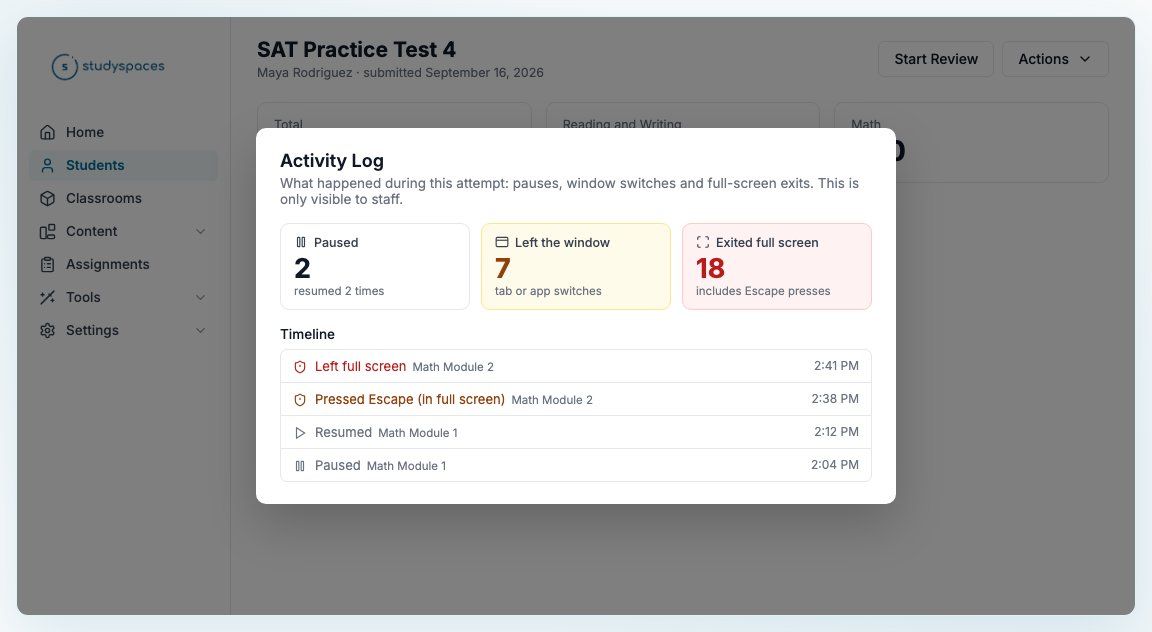
Open a student's attempt, choose Actions, then See Activity Log. You get three counts for that attempt, pauses, window switches and full-screen exits, and a timestamped timeline naming the section each event happened in. Counts turn amber past five and red past fifteen.
The log records leaving full screen, pressing Escape while still in full screen, continuing after a browser refused full screen, and every pause and resume. It is staff only and never shown to students. The student History tab also gains Started, Paused and Resumed entries, and it now loads in a fraction of the time it used to.
This is the companion to the full-screen mode we shipped last week: you turned enforcement on, and now you can see what actually happened.## 4. Review by time spent
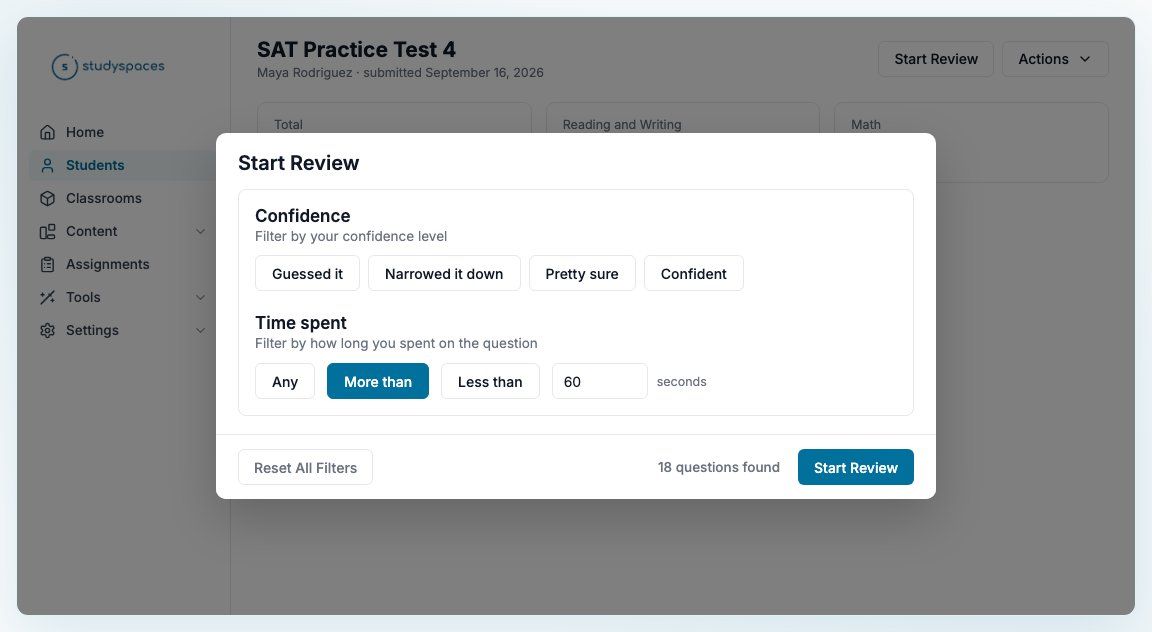
The Start Review modal gained the Time spent filter the Question Review tab already had. Choose Any, More than or Less than, set a number of seconds, and the question count updates as you go, so you can review only the questions a student rushed or only the ones that took them too long. Reset All Filters clears it with everything else.
Also this week
Preview in Exam: open any Question Database question full screen in a real exam environment, SAT, ACT, MCAT or USMLE, rendered as a student sees it.
Edit a question without losing your place: Edit question, Edit tags and Reload question now live in the review, preview and results views, so a bad question can be fixed mid-attempt without disturbing the student's answer, grade or timing.
ACT Reading passages underline only the current question's span; ACT English still shows every underline.