This Week on StudySpaces: Annotate on Screen, Student File Submissions, and More
Five things shipped this week. The first one is the one tutors have asked for the most.
1. Annotate on screen in exam review
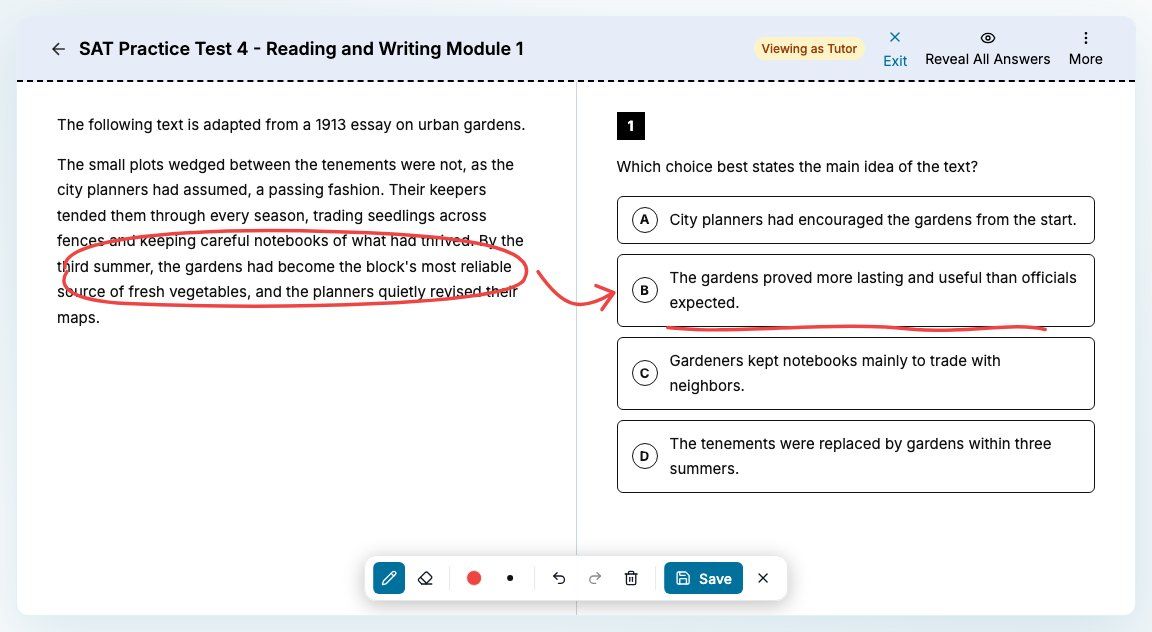
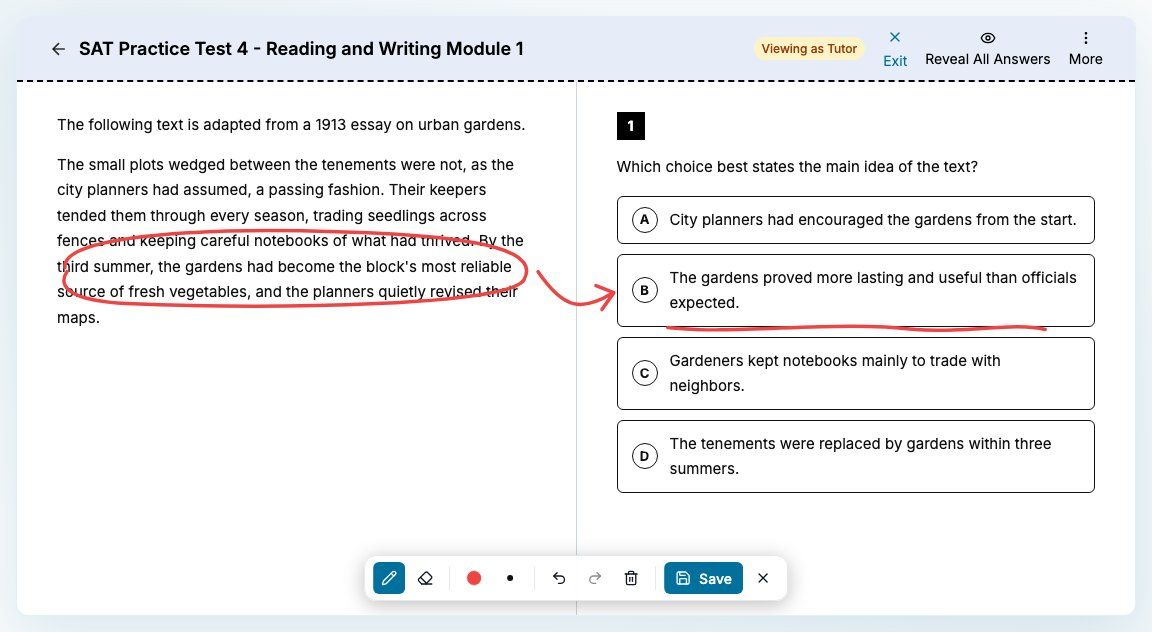
Draw directly over a student's question. Open any submission, click Annotate in the review toolbar, and the question freezes into a canvas you can mark up: circle the key phrase in a passage, cross out the distractor, sketch the diagram for a math problem. Pick a colour and pen thickness, undo and redo with Ctrl+Z / Ctrl+Y, then Save.
The student sees a View annotations button on that same question in their own review, read-only, so your explanation is waiting for them the next time they open the test.
Works on every exam review view: SAT, ACT, MCAT, USMLE, NPTE, PANCE, PANRE, and custom quizzes.
Works inside live sessions too, so you can annotate while teaching.
Split-layout questions (passage on the left, options on the right) are captured as two panes that scroll independently.
2. Student file submissions
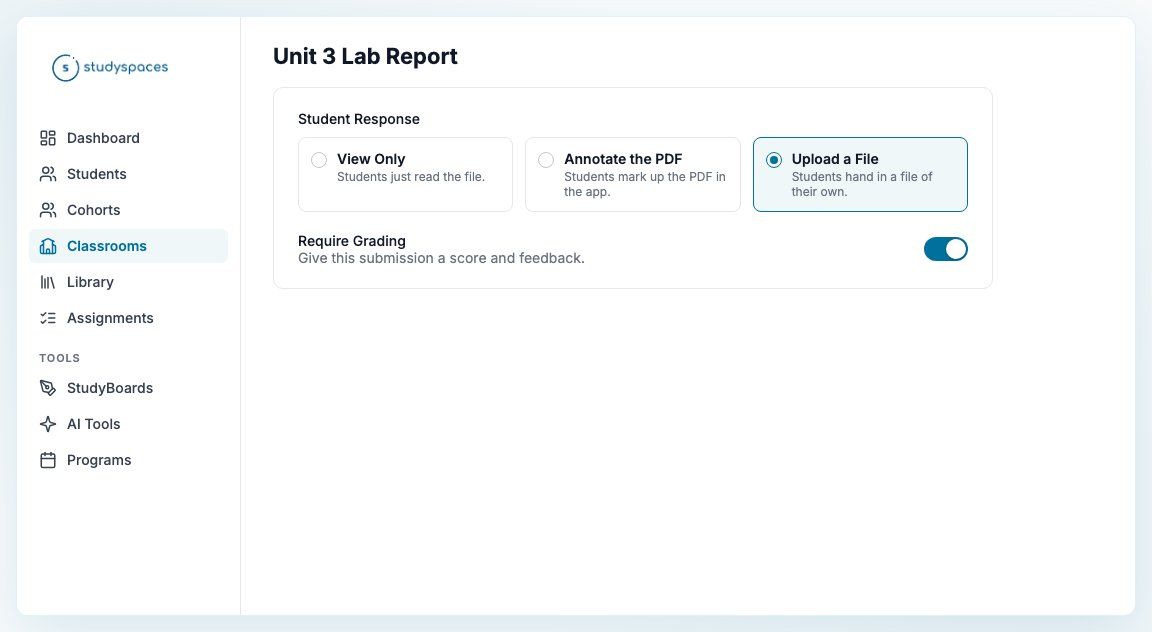
Assign a file and have students hand their own work back. File activities now have a Student Response setting with three modes: View Only, Annotate the PDF, and the new Upload a File.
With Upload a File, students hand in a file of any format (pdf, docx, video, audio) straight from the activity or from their task list. Submitting completes the task; students cannot mark it complete without handing something in.
Turn on Require Grading to score the submission and leave feedback on the same grading page you already use for annotated PDFs. The student sees the score and feedback on their View Submission page once you publish the grade. Draft grades stay hidden.
3. Question Review, now for students
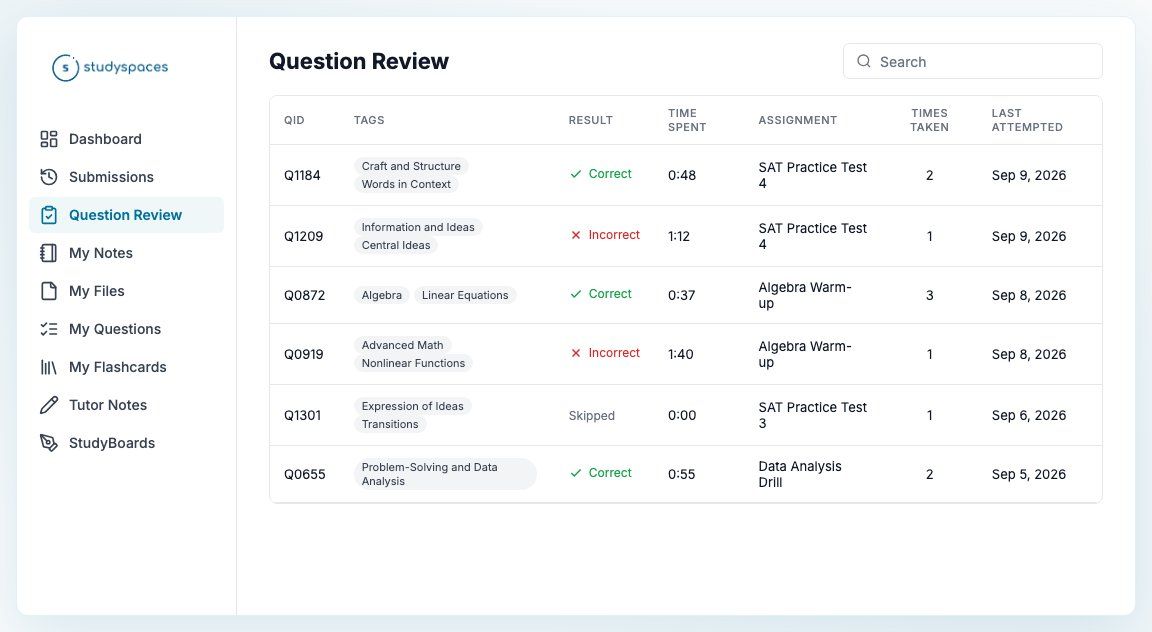
The Question Review you already have on a student's profile is now available to the student too. They get their own Question Review tab, next to Submissions: every question they have answered, with tags, result, time spent, times taken, and last attempted, searchable and filterable by assignment and section, with a question preview.
Off by default; turn it on per classroom under Settings > Layout & Widgets.
4. Full-screen mode for mock exams and quizzes
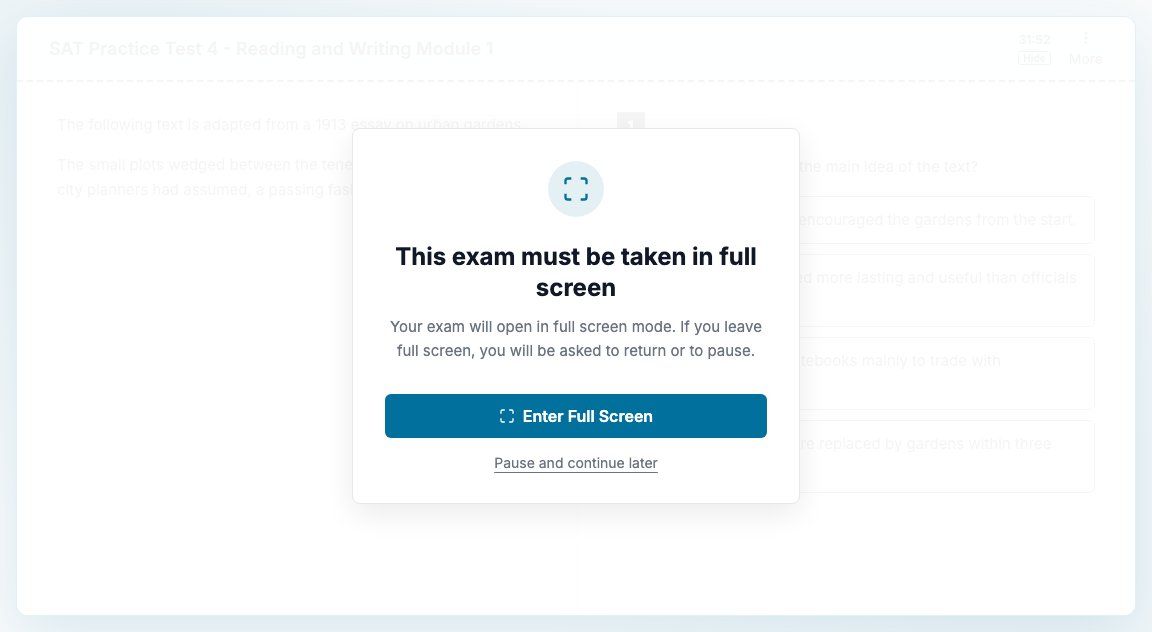
A new activity setting, Enforce Full Screen. Students take the activity in browser full screen. If they leave full screen (Escape, F11, swiping away on macOS), a prompt asks them to Return to Full Screen or Pause; pausing saves the attempt so they can resume from the Attempts page.
Default on for mock exams, off for quizzes, adjustable per activity. Not applied to admin previews, review mode, public diagnostics, or browsers that cannot do full screen (iPhone Safari), so no student gets locked out of a test.
5. Teach any PDF on a StudyBoard
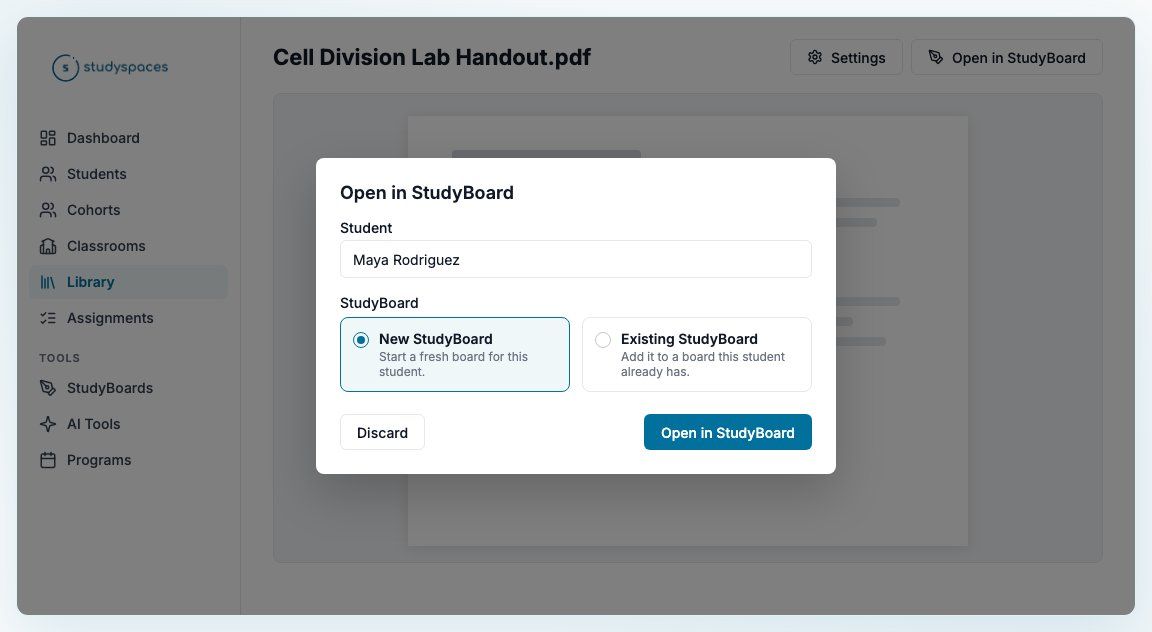
Every PDF file block now has an Open in StudyBoard button, in both the Library and classroom content. Pick the student, choose a new board or one they already have, and the board opens on the PDF itself, ready to draw on, instead of on an empty upload picker.
Re-opening the same PDF onto a board returns you to the tab you already had, so nothing you drew is lost. Together with this week's annotation feature, any handout, worksheet, or answer key can be taught on screen in one click.
Also this week
HSPT exam type: five sections, 200 to 800 scaled per section, composite as the section average.
Get Payment Link for self-pay students, from Billing > Students and the student's Billing tab. The link no longer expires.
Report Question button added to the ACT item header.
Cohorts: you are now asked before existing cohort work is backfilled when adding a student, on every surface that adds one; started student work is kept when a cohort assignment is deleted.
Library: larger drag handle, and selection clears after moves and deletes. "Study Time" is renamed "Practice Time" in the practice-time calendar.