New on StudySpaces: TestBright's Curriculum, Content Insights, Interactive Lessons, and More
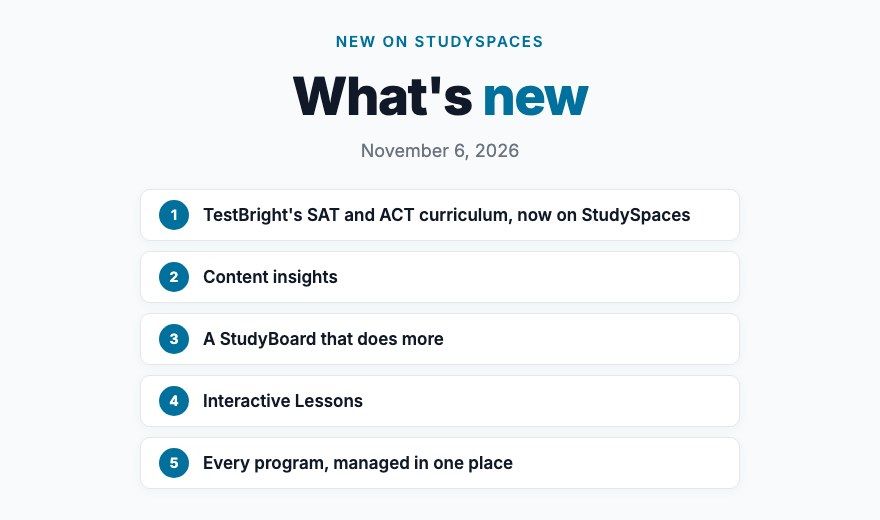
Two announcements and four big updates: TestBright's SAT and ACT curriculum in the Content Store, Content insights, a StudyBoard that does more, Interactive Lessons, and live programs.
TestBright's SAT and ACT curriculum, now on StudySpaces
We've partnered with TestBright to bring their SAT and ACT curriculum into the StudySpaces Content Store. There are four packs: SAT Math, SAT Reading and Writing, ACT Math, and ACT Verbal.
The SAT workbooks come as interactive workbooks (more on those below), with their exercises already linked to StudySpaces worksheets, so you can teach from the page and assign right from it.
To get access, open the Content Store, find the TestBright packs, and click Request info.
▶ Watch the TestBright launch webinar recording
1. Content insights
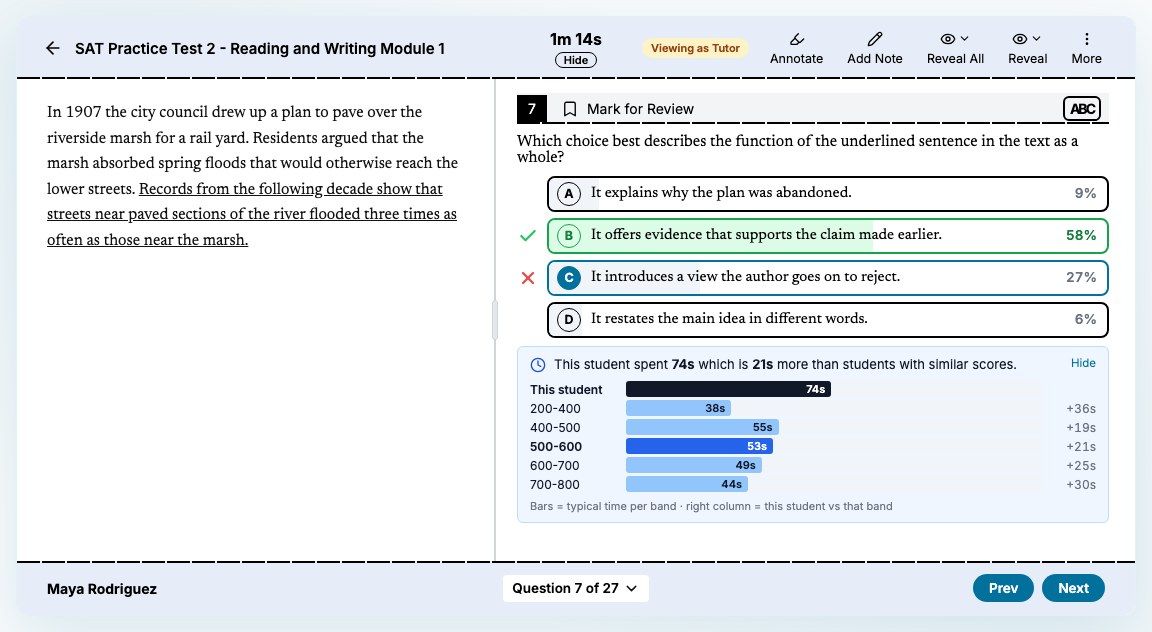
See how every student answered each question, and how long they took. When you review a student's attempt on one of our SAT practice tests, you can now compare it with how students across StudySpaces answered the same question.
Distractor analysis. Open Reveal on any question and pick Show Distractor Analysis, under "Across all students". Each answer choice fills in with the share of students who picked it, with the correct answer in green. Grid-in questions show the correct value and the most common wrong answers.
Timing analysis. Pick Show Timing Analysis to see how long this student spent compared with students who scored in the same range, plus how every score band paced the question.
Pacing at a glance. On the Score Review and Detailed Analytics tabs, the Pacing Overview has a new Compare to band switch. A dashed outline on each bar shows the typical time for the band you pick.
All at once. Reveal All is now a dropdown, so you can turn distractor or timing analysis on for every question as you click through.
Just for tutors. Students never see Content insights, and it shows percentages and seconds only.
Coming next: Content insights for our worksheets, the College Board question bank, and ACT.
2. A StudyBoard that does more
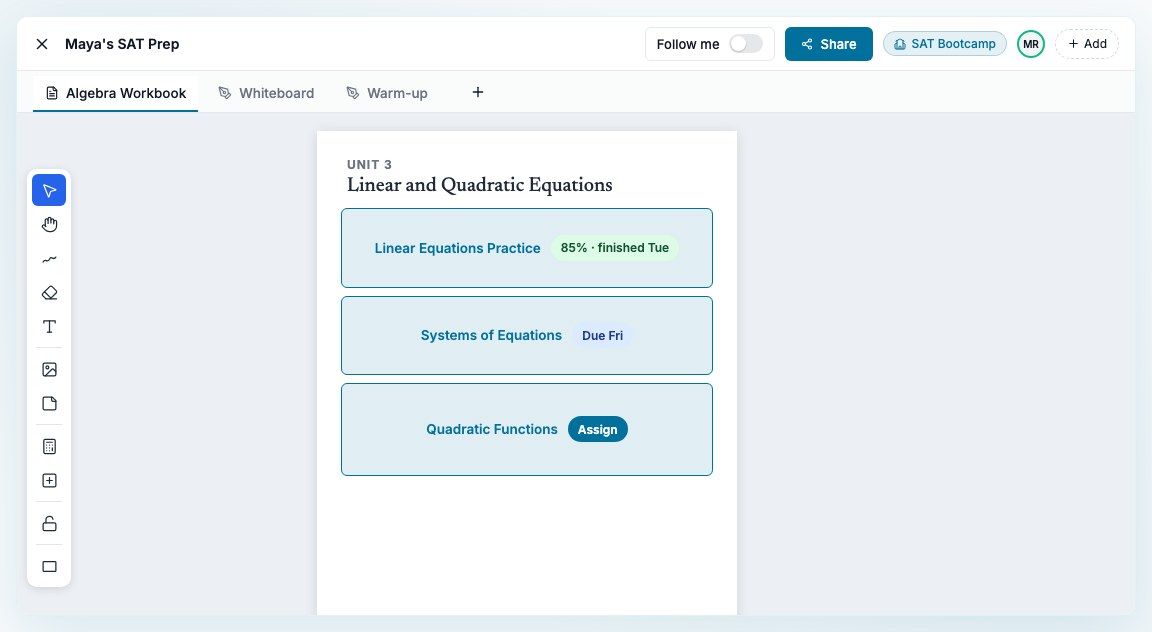
Interactive workbooks. Turn a PDF workbook into a live one. On a document tab, click Add exercises in the toolbar, draw around an exercise, and link it to an activity from your Library. StudySpaces suggests the next activity in the folder so you can work down the page quickly, and you can hide the printed exercise behind a card.
On a student's board, each exercise shows where it stands: Due Fri, Late, In progress, or the score once it's finished. Click Assign right on the page.
Students see only the exercises assigned to them, with Start, Keep going or See my results in place of the printed questions.
One box, several worksheets. A single exercise box can hold more than one worksheet, which is handy for multi-part pages.
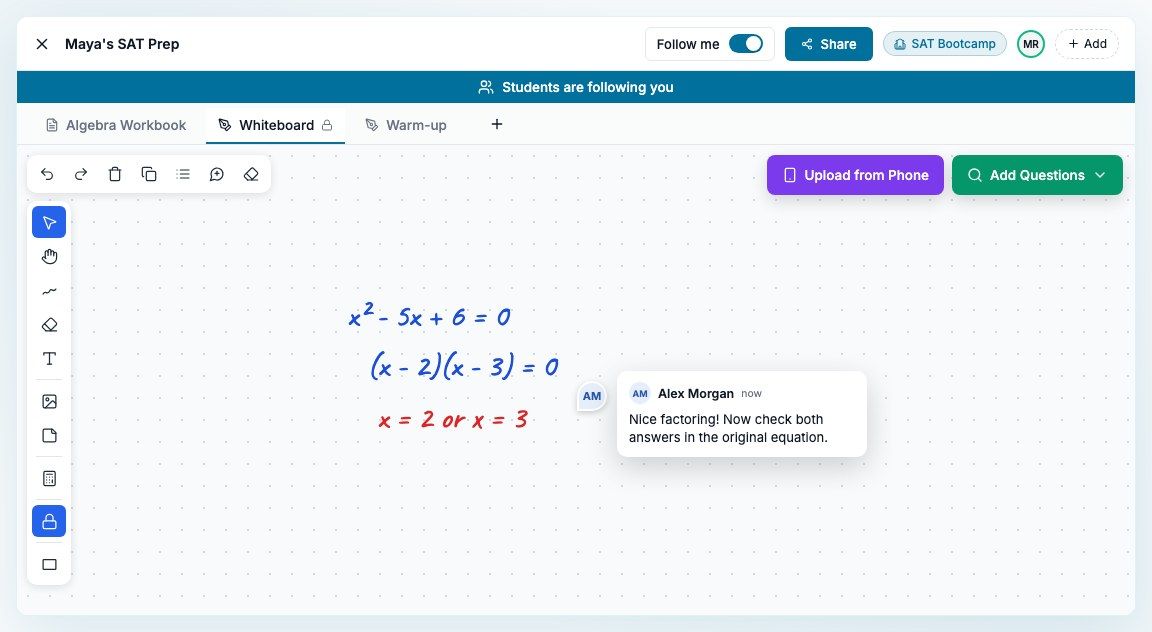
Follow me. Turn on Follow me next to Share and every student on the board sees what you see, including whichever tab you open. A banner reminds you it's on, and it ends when you turn it off or leave the board.
Lock annotations. Click the lock in the toolbar to stop students drawing on a tab while they can still scroll and zoom. The lock stays on that tab until you unlock it, and boards made from a template keep it.
Comments. Pin a comment anywhere on a whiteboard or PDF page, reply, resolve, @mention people on the board, and see every thread in one list. Tutors and students can both comment.
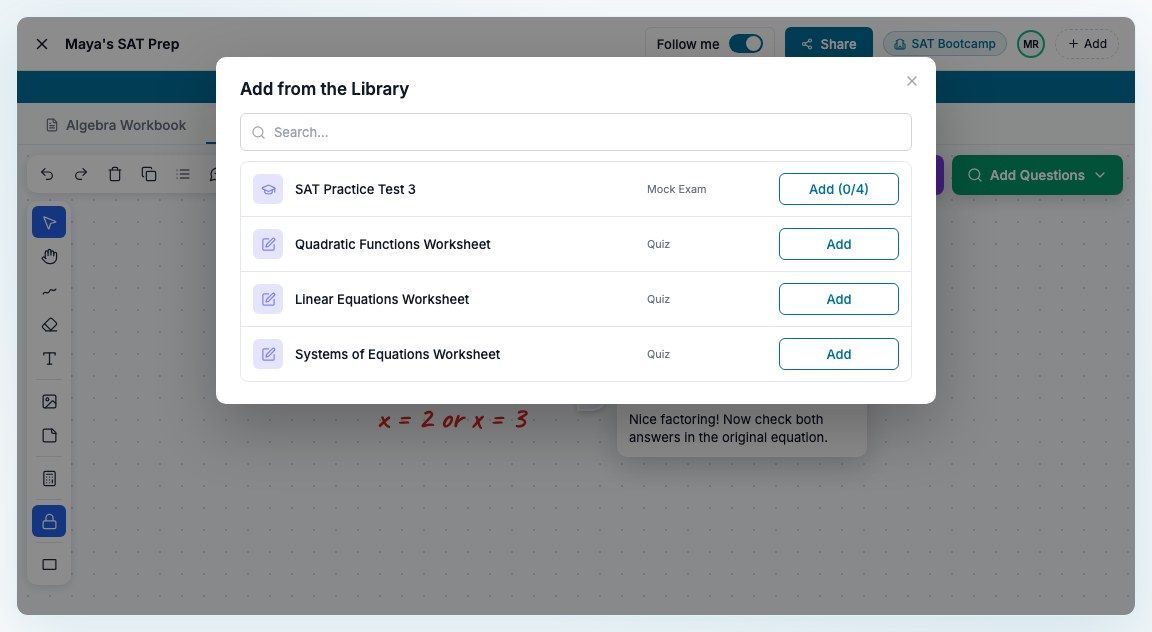
Your Library, inside the board. Click Add Questions, then Browse Library, to bring a whole worksheet or quiz (or the sections of a mock exam you pick) onto the board, without leaving it.
Templates. Save any board as a template, then use it for a student, several students, or a whole cohort in one go.
Drag to reorder tabs, like browser tabs. Students see your new order right away.
Cleaner drawing. Hold the pen still at the end of a stroke and it snaps into a clean line, circle, rectangle or triangle. The style panel now sits in the bottom-right corner on every tab.
3. Interactive Lessons
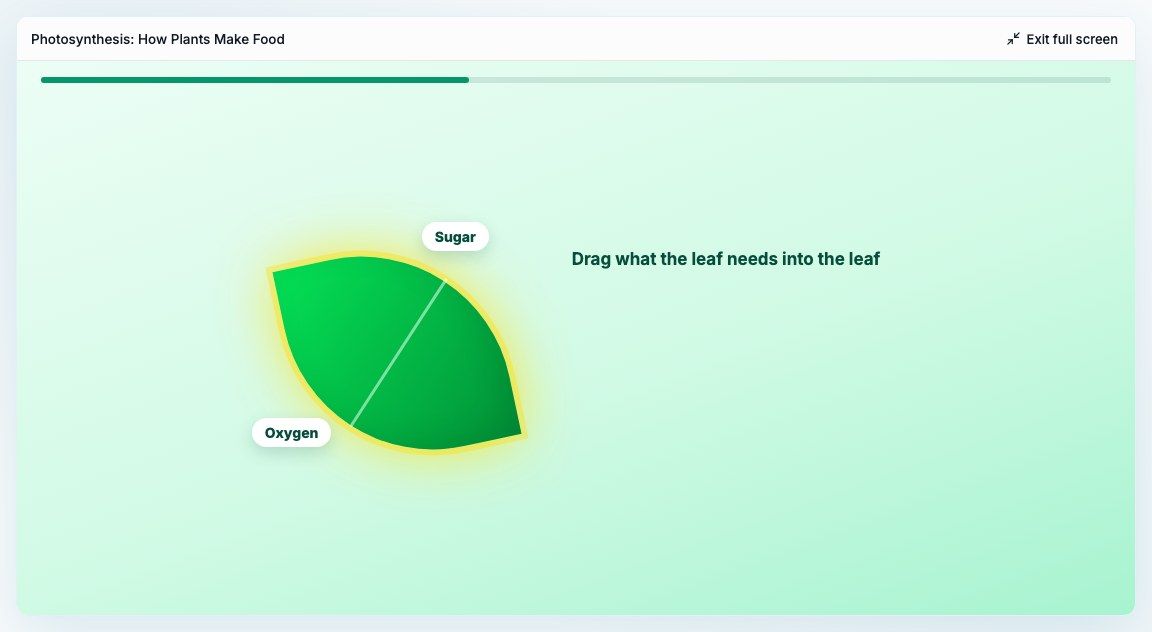
Lessons your students actually do, not just read. An Interactive Lesson is a hands-on lesson, with steps to click through, things to drag and try, and quick checks along the way, that lives in your Library next to your quizzes and worksheets.
Bring your own, or build one with Claude. Upload an interactive lesson you already have, or ask Claude to build one through our Claude connector.
Assign it like any other activity. Students open it from their assignments, content or modules, and can go full screen.
See how it went. The lesson's Overview tab shows submissions, completion, average score and study time, with every attempt listed by student.
Finished means finished. A lesson counts as complete when the student finishes it, so it can't be marked complete by hand before then.
4. Every program, managed in one place
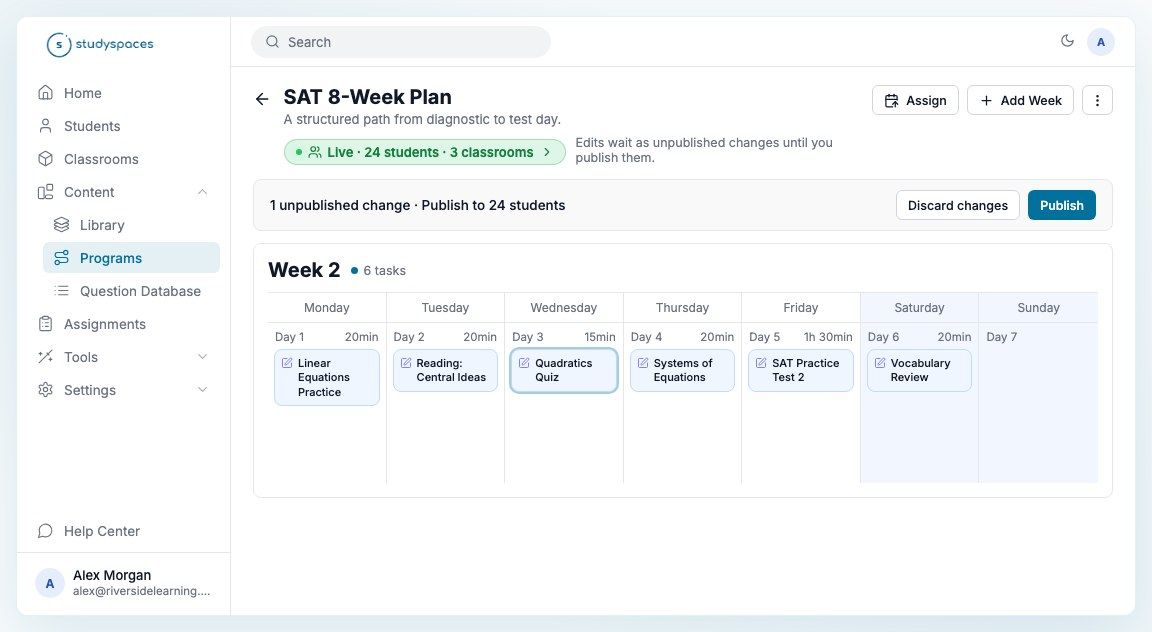
Programs under Content, Programs used to work like a one-time copy: when you assigned a program, each student got their own snapshot, so any change you made afterward never reached them. A student could only follow one program at a time, and new students had to be added by hand.
Now programs are live. Students stay connected to the program, so you can keep improving it after it's assigned.
Week view or list view. Lay a program out week by week, with each day planned from Monday to Sunday, or as a simple list of units worked in order.
See where each program is live. Every program shows how many students and classrooms it reaches. Click the green Live badge to see each student's progress and last activity.
Edit, then publish. Changes to a live program wait as unpublished changes until you click Publish. You choose whether they go to existing students too or only new ones. Students who already started a changed item keep their version, so no work is lost.
More than one program per student. Adding a program to a student no longer replaces the one they have. Students with several programs pick between them on their Program tab.
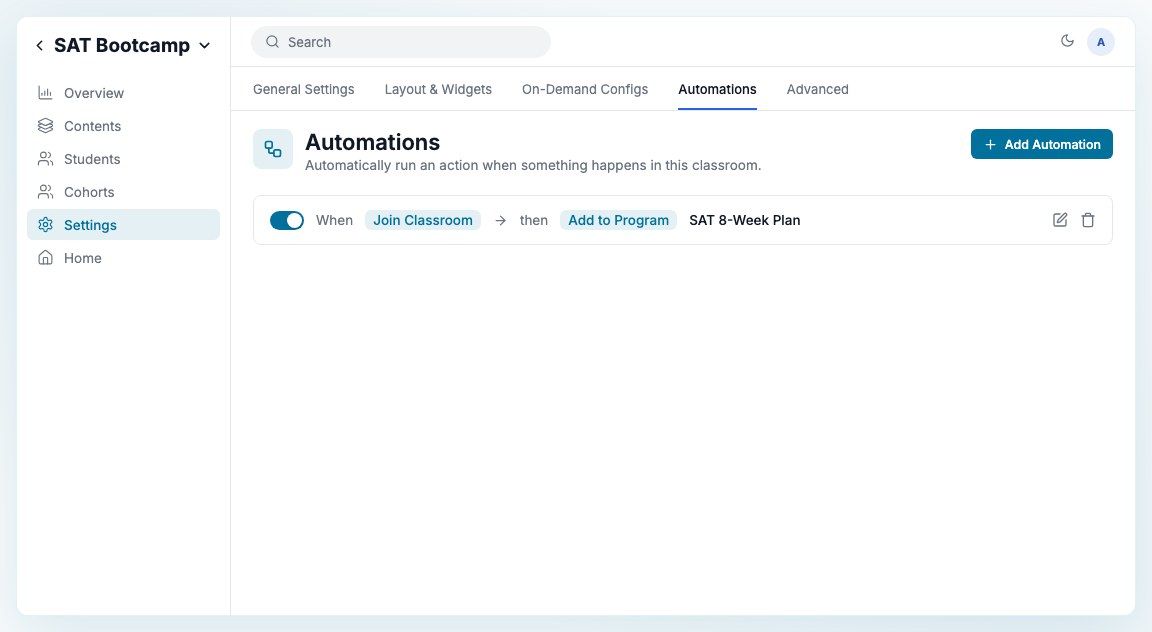
Add students automatically. In a classroom, go to Settings, Automations and click Add Automation. Choose When: Join Classroom and then: Add to Program, and every student who joins that classroom from then on gets their own copy of the program.
Prefer to just ask? You can build, edit and publish programs by asking Claude, through our Claude connector.
Also new
Move a result to another classroom. In a student's History, the menu on a finished quiz or mock exam has Move to classroom. The assignment moves with it.
Hide the scaled score. A new Show Scaled Score switch in a mock exam's Advanced Settings hides the scaled score everywhere and shows the percentage instead.
Cleaner pickers. Classrooms a student can no longer access drop out of the assign pickers.
Your Library sort sticks. The Library remembers the sort order you pick.
Add diagnostic leads in bulk. On a diagnostic's Leads tab, tick the students who finished and add them all as students at once. Each keeps their diagnostic result.
Tighter question layout. Math spacing and tables in questions now look closer to Bluebook. This is rolling out workspace by workspace.