This Week on StudySpaces: ACT Worksheets, Parent Reports Built Your Way, and More
Five things this week: ACT worksheets cut from official tests, parent reports you can shape section by section, Question Review for a whole cohort, one daily email instead of dozens, and room to add pages to any PDF on a StudyBoard.
1. ACT worksheets built from real tests
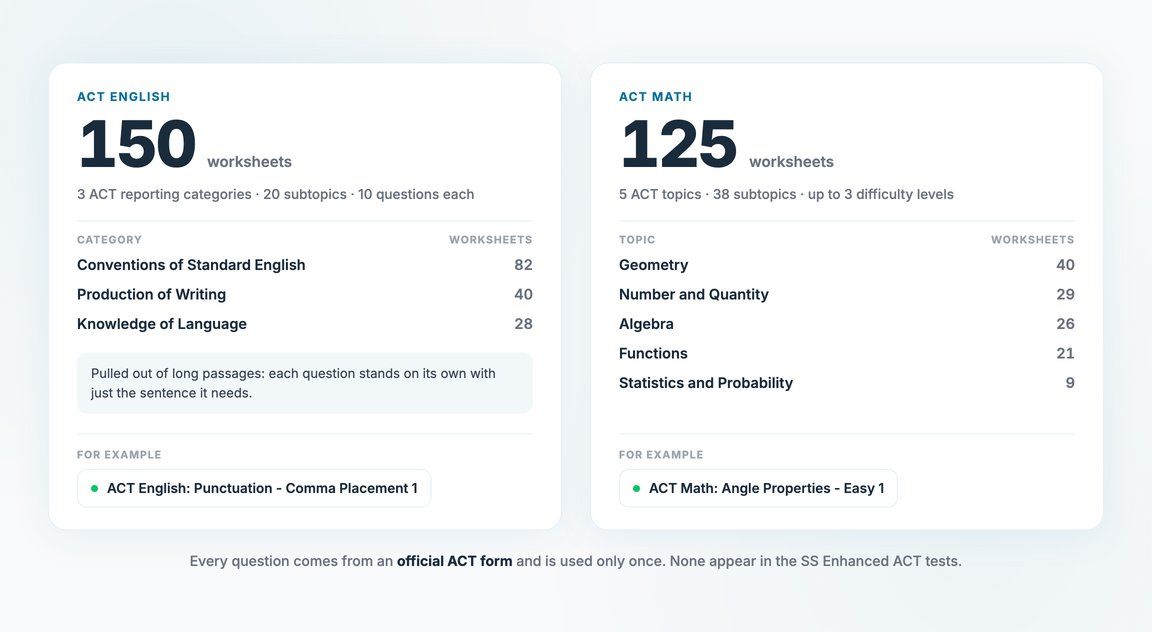
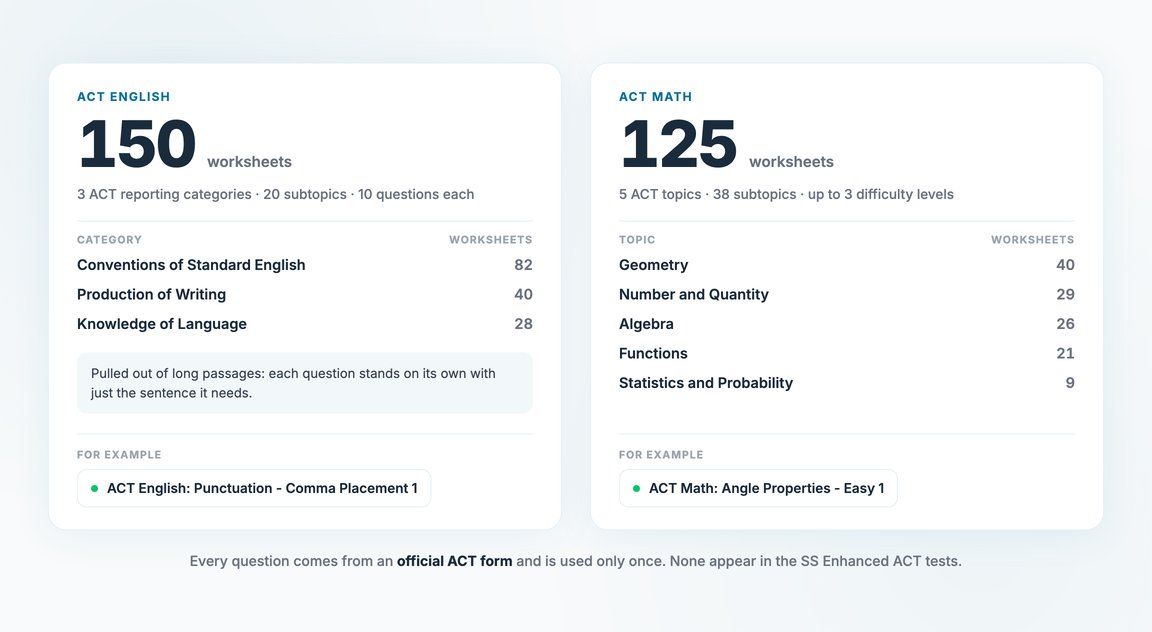
We turned official ACT questions into 275 short worksheets, 150 for English and 125 for Math, each one aimed at a single skill.
- English questions used to live inside long passages. Each one now stands on its own with just the sentence it needs, so it can go on any worksheet. The English worksheets follow the ACT reporting categories (Conventions of Standard English, Knowledge of Language, Production of Writing), 10 questions each.
- Math is split by the five ACT topics (Algebra, Functions, Geometry, Number and Quantity, Statistics and Probability), then by difficulty. Most subtopics come in Easy, Medium and Hard.
- Names tell you what's inside: ACT English: Punctuation - Comma Placement 1, ACT Math: Angle Properties - Easy 1.
Every question is used only once, and the questions are spread across the source forms, so no worksheet is one test in disguise. None of them appear in the SS Enhanced ACT tests, so the worksheets won't spoil those tests. Find them in the Content Store.
2. Parent reports, built your way
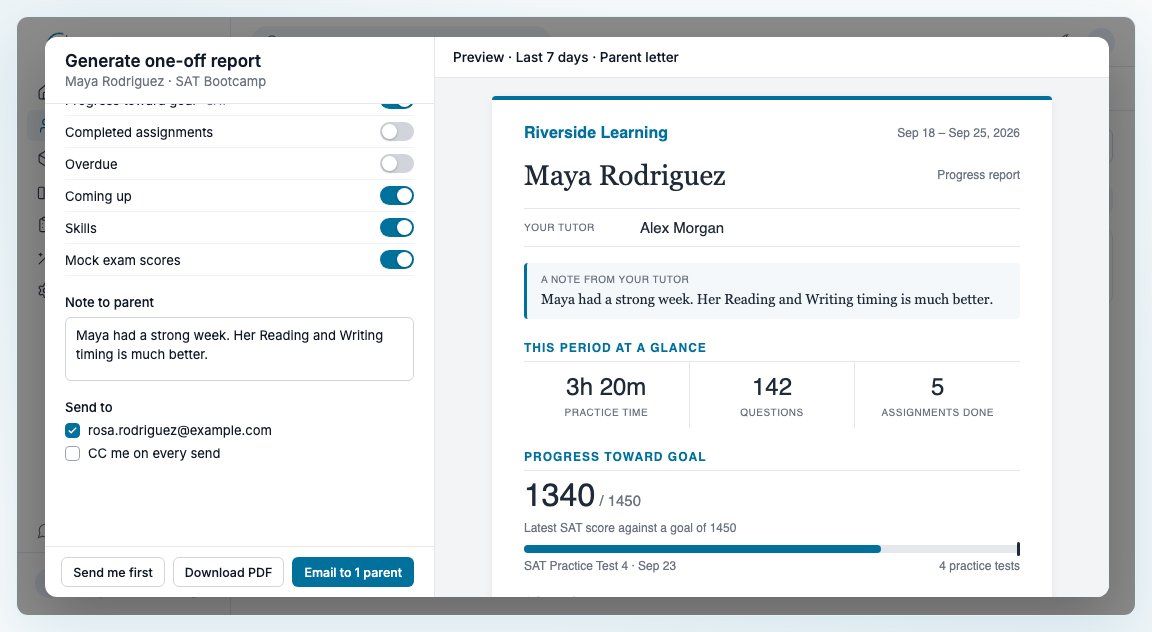
The Parent Report button on a student's Dashboard now offers two options: Generate one-off report and Set up automated reports. Both work the same way: settings on the left, and on the right a live preview of exactly what the parent will receive, updating as you go.
- Pick the sections. Thirteen of them, from This period at a glance and Progress toward goal to Skills, Mock exam scores, Coming up and Flashcards. Switch one off and it leaves the preview instantly. Sections with nothing to show are marked No data in this range, and Reset to default puts everything back.
- Pick the range. Last 7 days, last 30 days, since the last report, or custom dates.
- Add a note. Your Note to parent appears at the top of the report.
- Send it your way. Download PDF, Send me first to check it in your own inbox, or email it to the parent right away.
Automated reports go out on the schedule you choose (daily, weekdays, weekly, biweekly or monthly) at the day and time you pick. Each one can cover the last 7 days, the last 30 days, everything since the last report, or everything since enrollment. You can send a test email first, pause and resume, and see a history of what went out.
3. Question Review for a whole cohort (aka class)
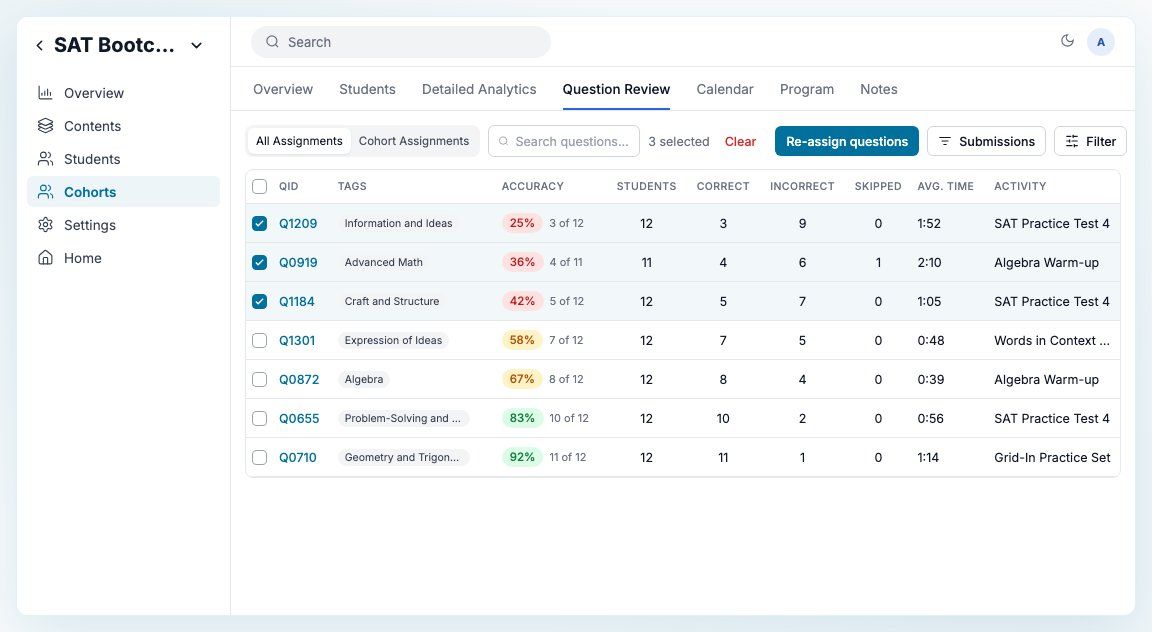
The Question Review you know from a student's profile now works for a whole cohort. Open a cohort from your classroom and click the new Question Review tab to see every question the class has answered: its accuracy, how many students got it right, got it wrong or skipped it, and the average time spent.
- Lowest accuracy first, so the questions the whole class missed are right at the top.
- All Assignments or Cohort Assignments. See everything the cohort's students worked on in the classroom, or only what you assigned to the cohort.
- Search and filter. Search by question text or QID, filter by answer state, time spent and more, or narrow to specific assignments under Submissions.
- Re-assign the misses. Check the questions you want (or select every question that matches your filters), click Re-assign questions, and we build a practice set from them with the whole cohort already selected. Pick a date and it lands on everyone's calendar.
4. One daily digest of student activity
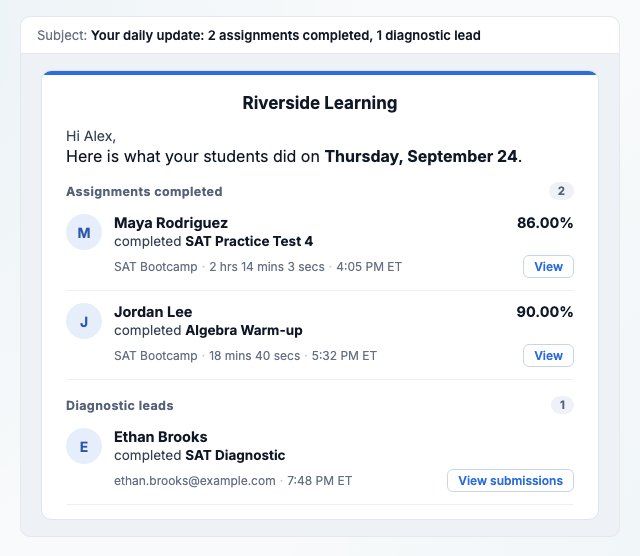
If your inbox fills up every time a student finishes something, this one is for you. Click your name at the bottom of the sidebar and find Custom Email Delivery. Turn it on and choose:
- Daily: one email a day instead of one per completion, at the hour you pick in your own time zone (6:00 PM Eastern unless you change it).
- None: you won't receive these emails at all.
The digest groups the day into Assignments completed, On-demand activities completed, Diagnostic leads and Offline exams submitted, with scores, time spent, and a button straight to each submission. It's set per workspace, so you can go daily in one and keep instant emails in another. It only changes how these emails reach you, not which ones you get: your existing notification settings still decide that.
5. Room to work on any PDF
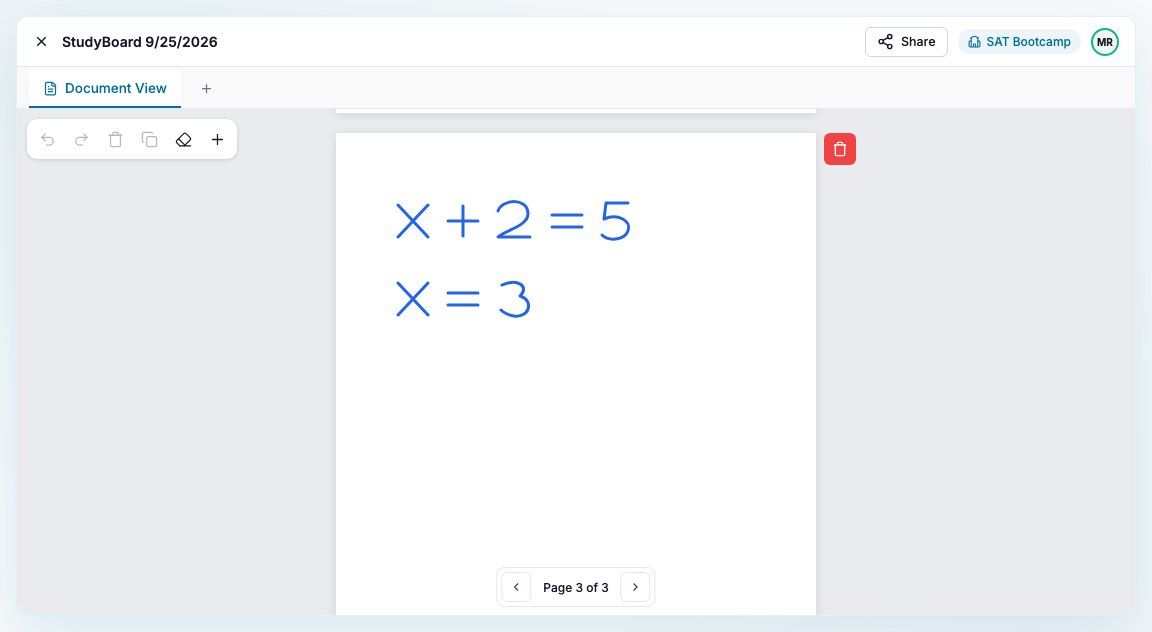
Teaching from a PDF on a StudyBoard and running out of room? In Document View, click the new + (Add page) in the top-left toolbar and a blank page is added to the end of the document. It syncs live, so your student sees it right away and can work on it with you.
Pages you add get their own trash button, and if a page has annotations on it, you're told how many before it goes. The PDF's own pages can't be deleted, so the original is always safe. Adding and deleting pages is tutor-only.