How to Enable the Confidence Level Picker for a Quiz on StudySpaces
The Confidence Level Picker is a feature that allows students to rate their confidence after answering each question. This helps you track not just whether students got an answer right, but how sure they felt about it, giving you deeper insight into their understanding. This feature is available for SAT, ACT, SSAT, and ISEE exam environments. This guide walks you through enabling the Confidence Level Picker on an existing quiz activity and shows what the student experience looks like in practice.
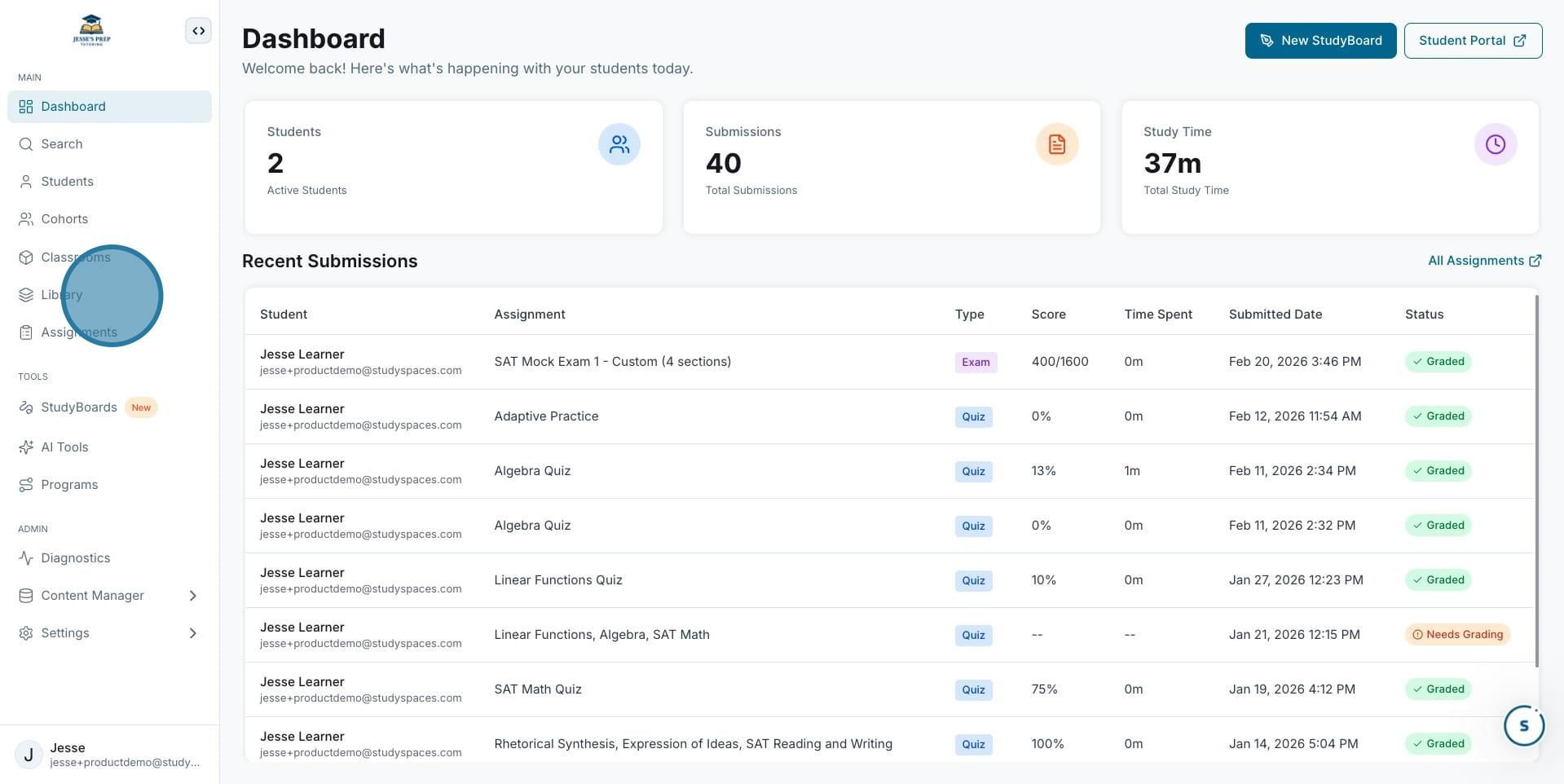
1. Open the Library. From the Dashboard, click the Library icon in the left-hand navigation menu. This will take you to your activity library, where all your quizzes, exams, and flashcards are organized.
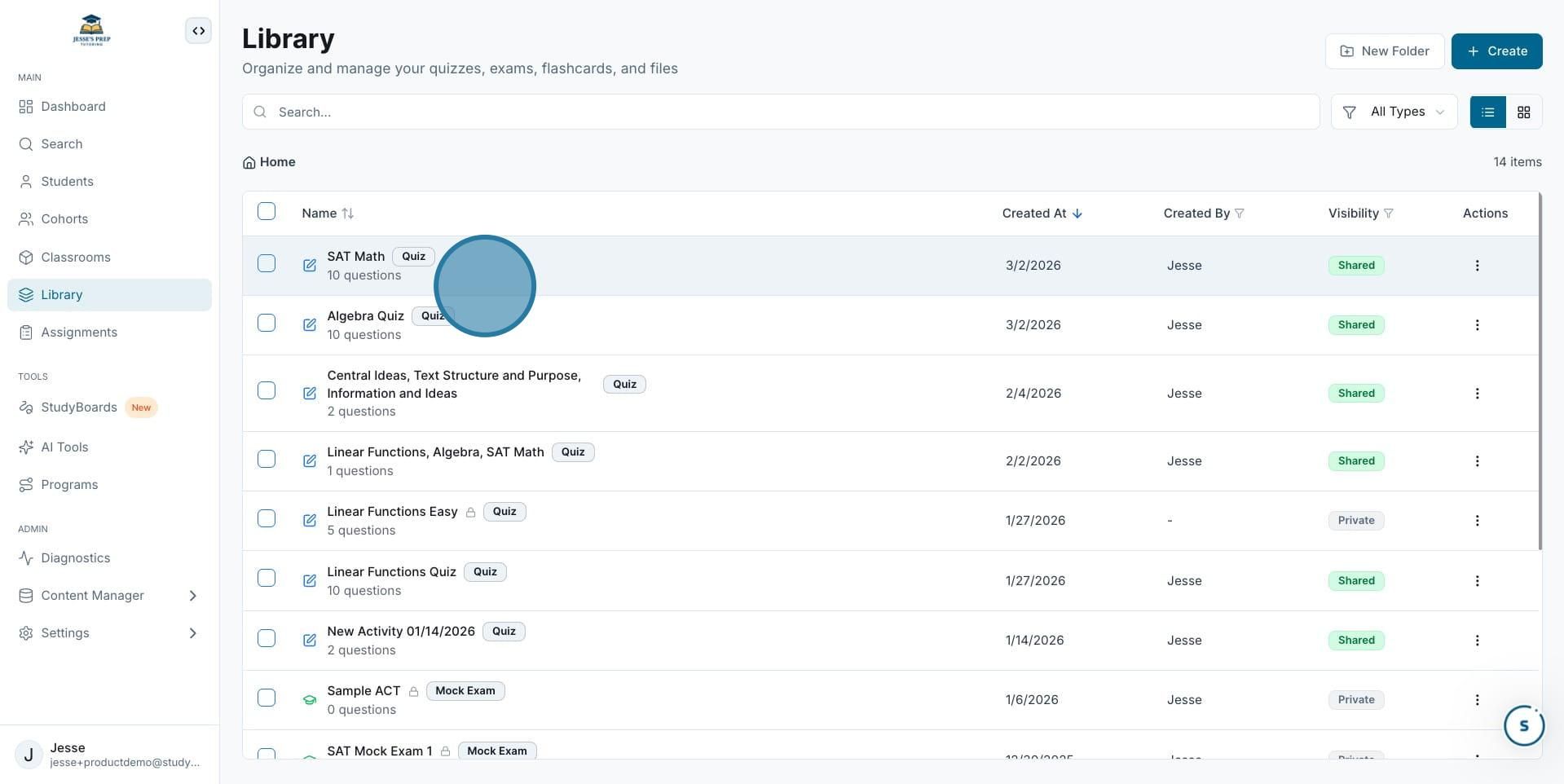
2. Select a quiz. In the Library, locate the quiz you want to update (for example, "SAT Math") and click on it to open it.
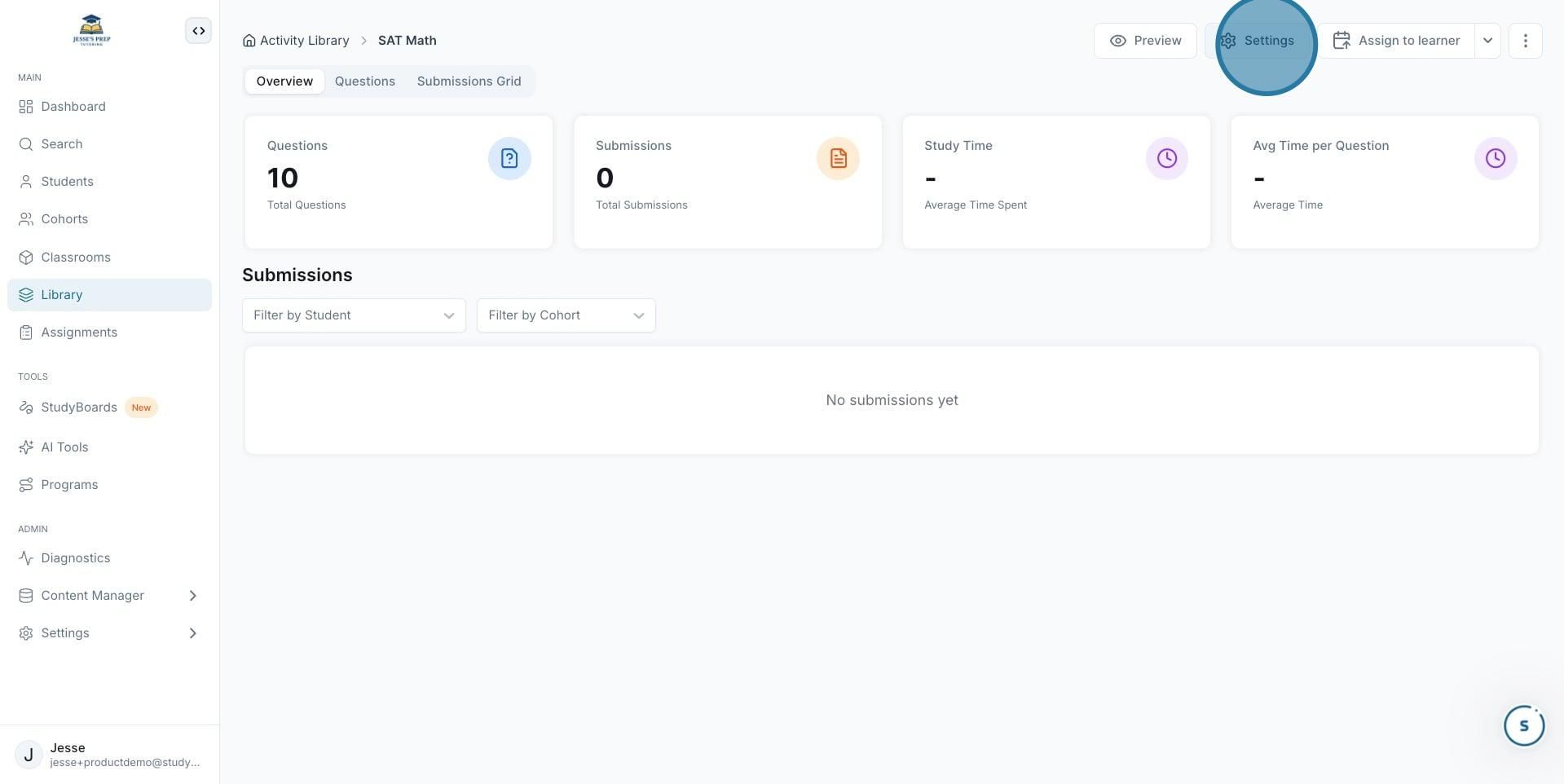
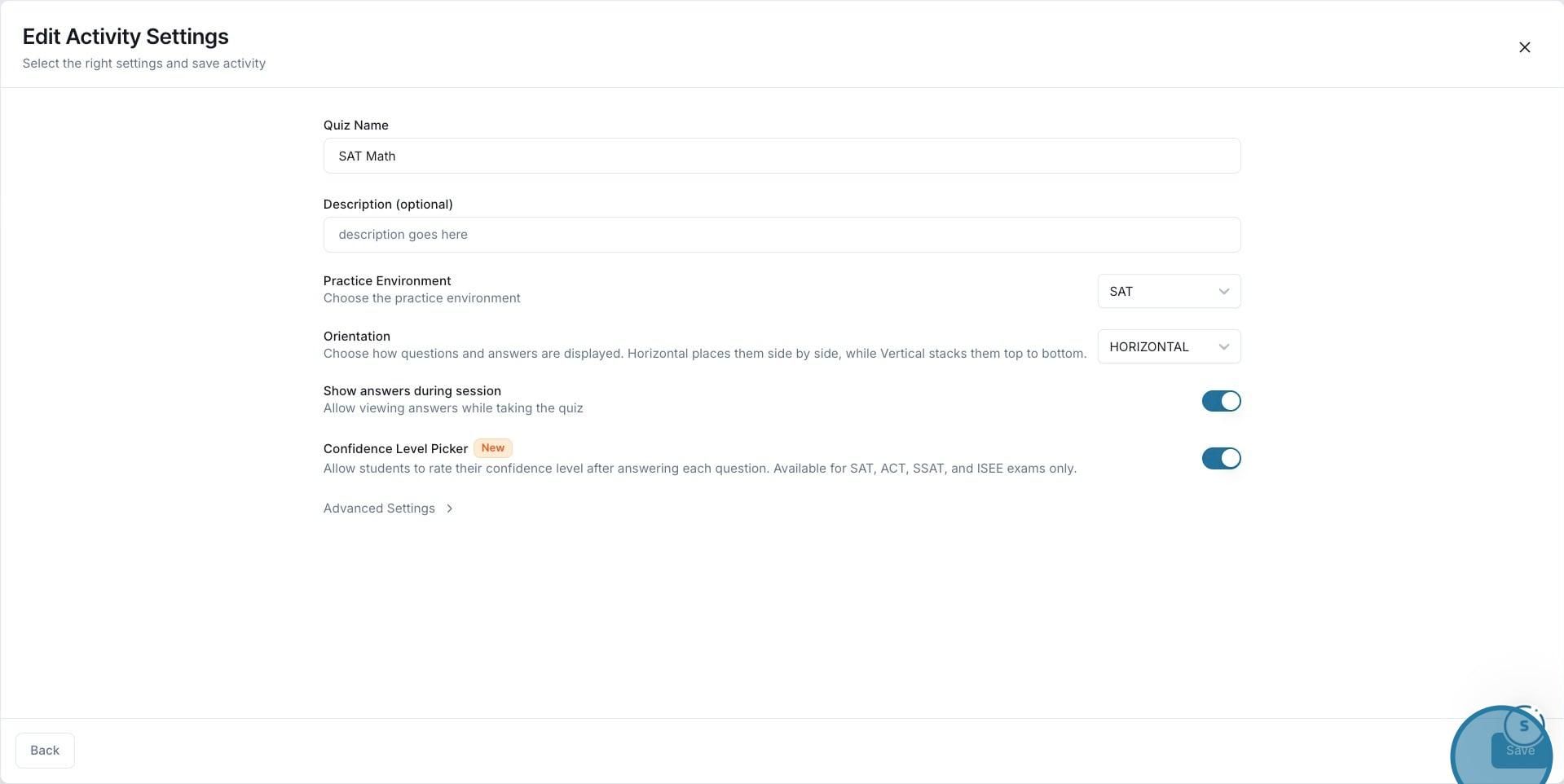
3. Open Settings Once you're inside the quiz, click the Settings button in the top right area of the activity page to open the Edit Activity Settings panel.
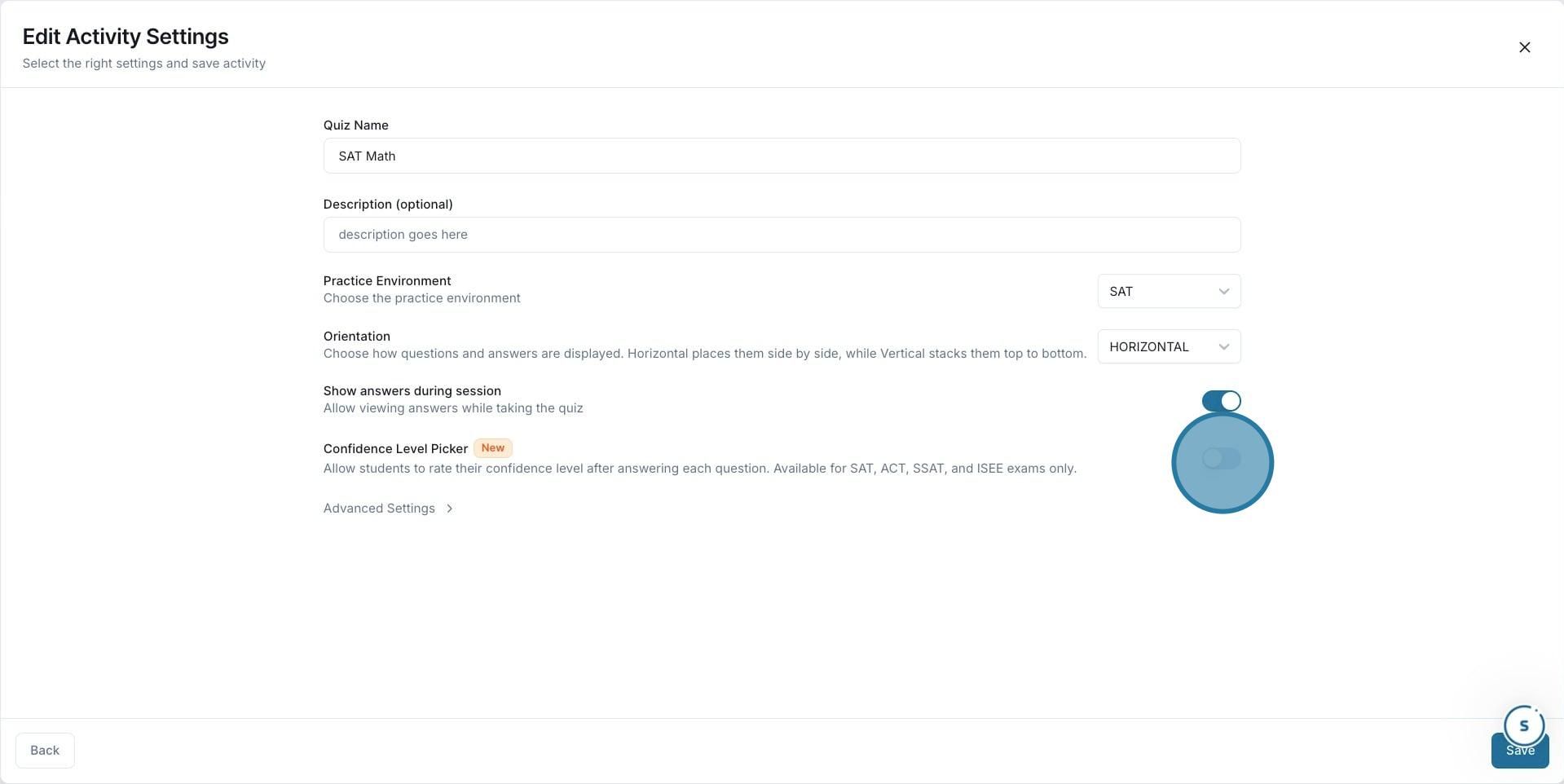
4. Enable the Confidence Level Picker. In the Edit Activity Settings panel, scroll down to find the Confidence Level Picker toggle (labeled "New") and turn it on. This allows students to rate their confidence level after answering each question. Available for SAT, ACT, SSAT, and ISEE exams only.
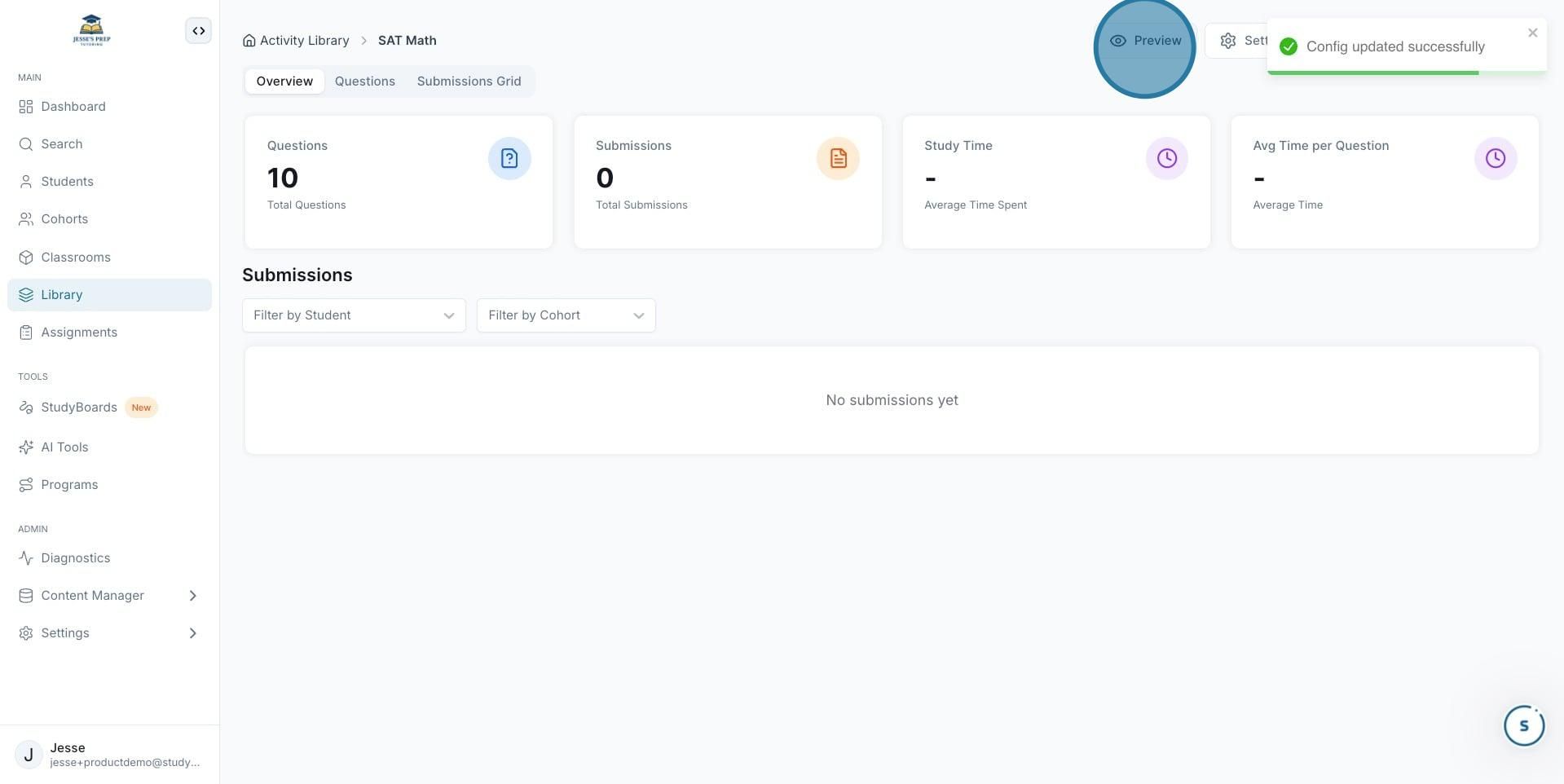
5. Save your settings. Click Save to apply your changes. You'll see a confirmation message ("Config updated successfully") once the settings have been saved.
6. Preview the activity. Click Preview to see the student experience firsthand and confirm the Confidence Level Picker is working as expected.
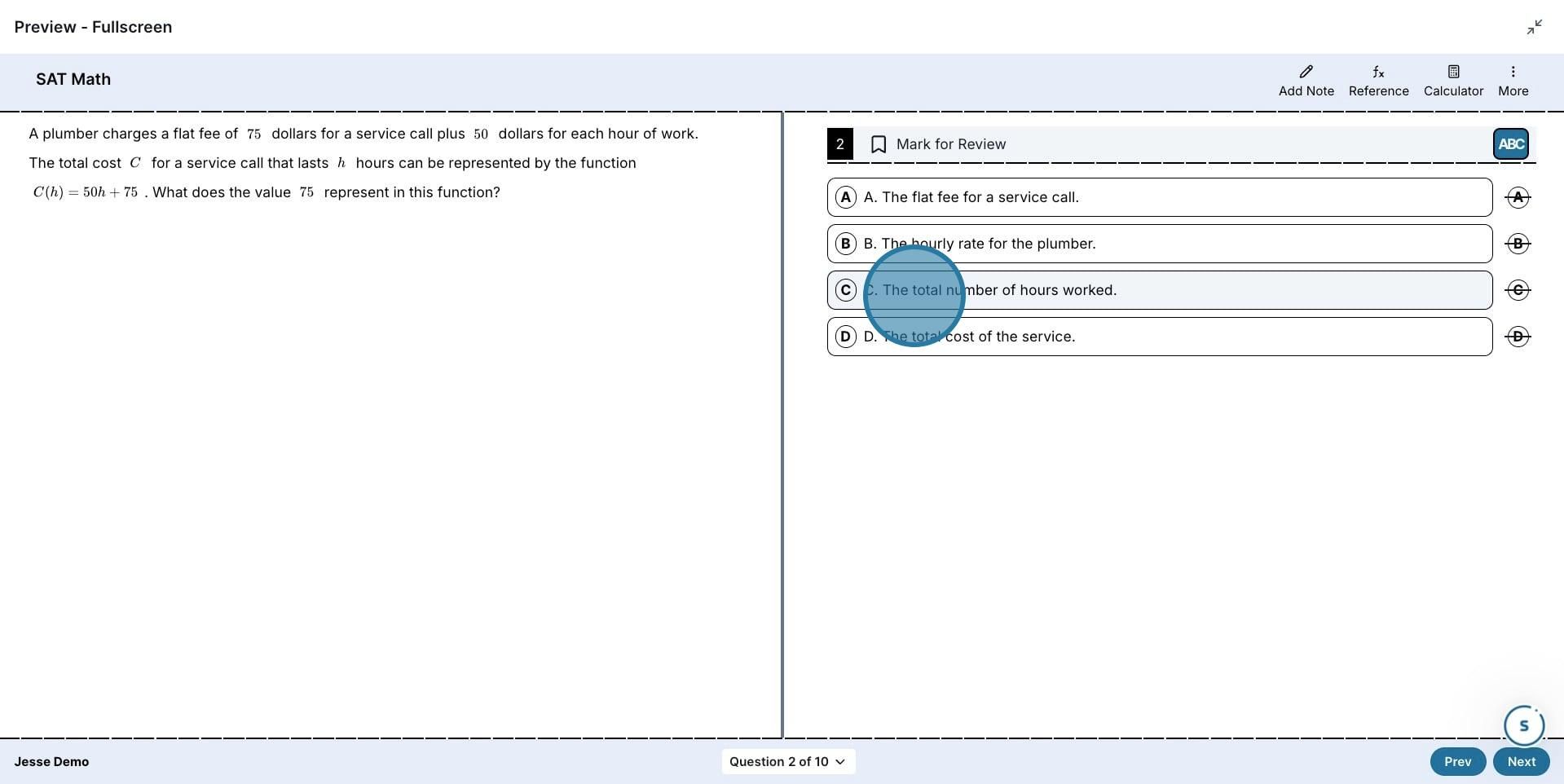
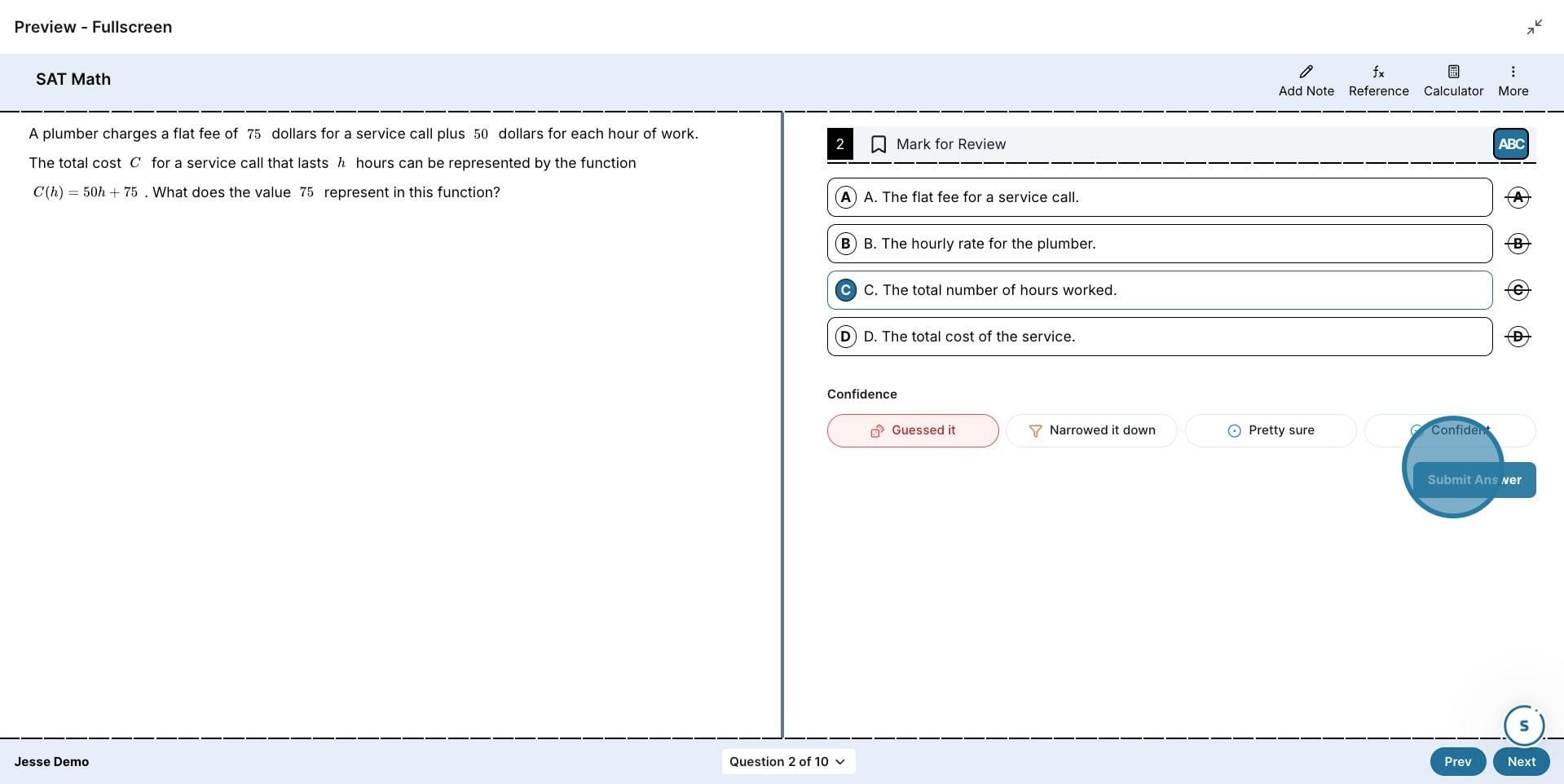
7. Answer a practice question. In the preview, you'll see a sample quiz question with multiple-choice answers. Select an answer to continue.
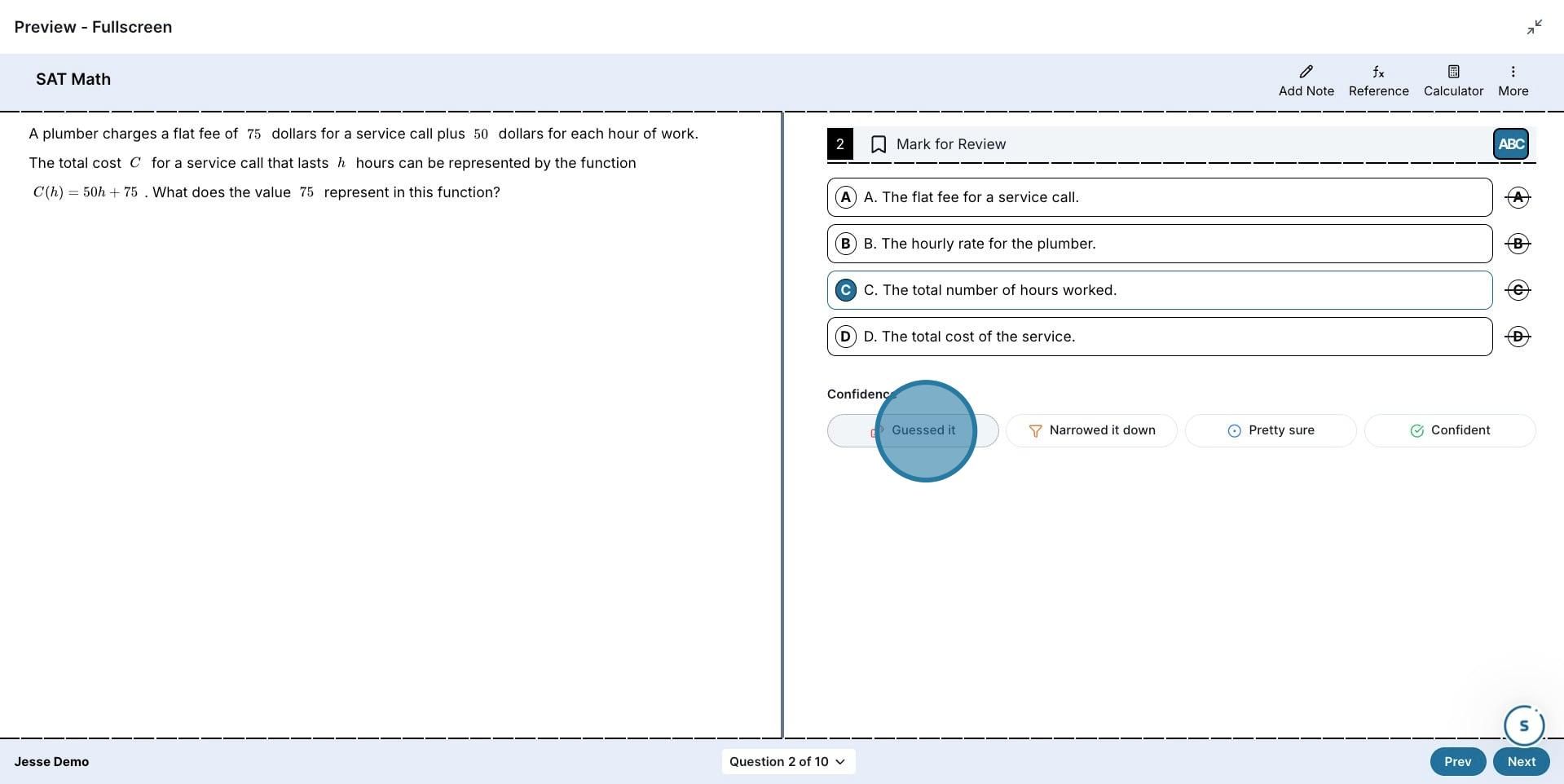
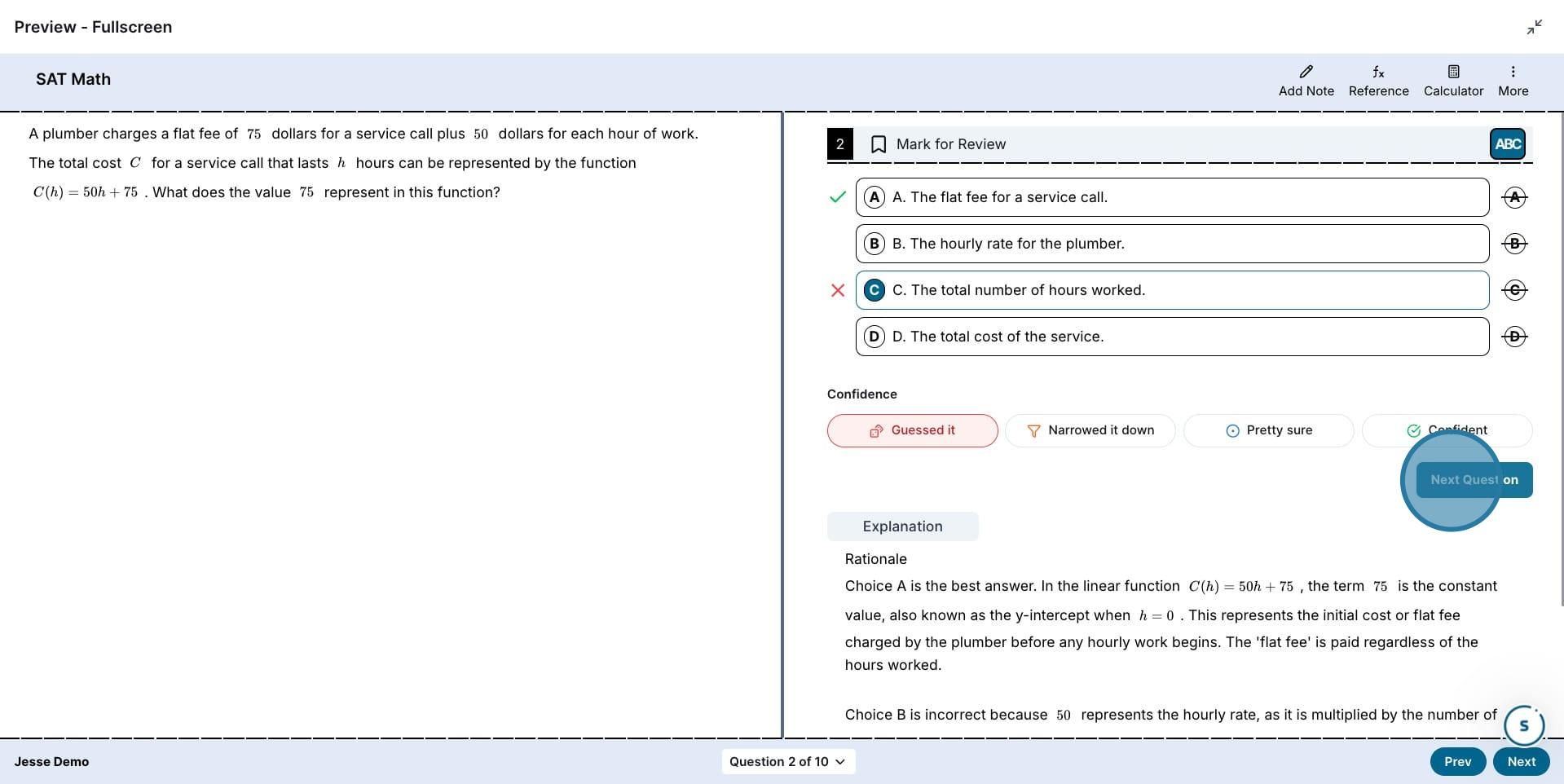
8. Select a confidence level. After selecting your answer, the Confidence section will appear below the answer choices. Students can choose from: Guessed it, Narrowed it down, Pretty sure, or Confident.
9. Submit the answer. Click Submit Answer to confirm the response and confidence rating. After submitting, students will see whether their answer was correct, along with an explanation.
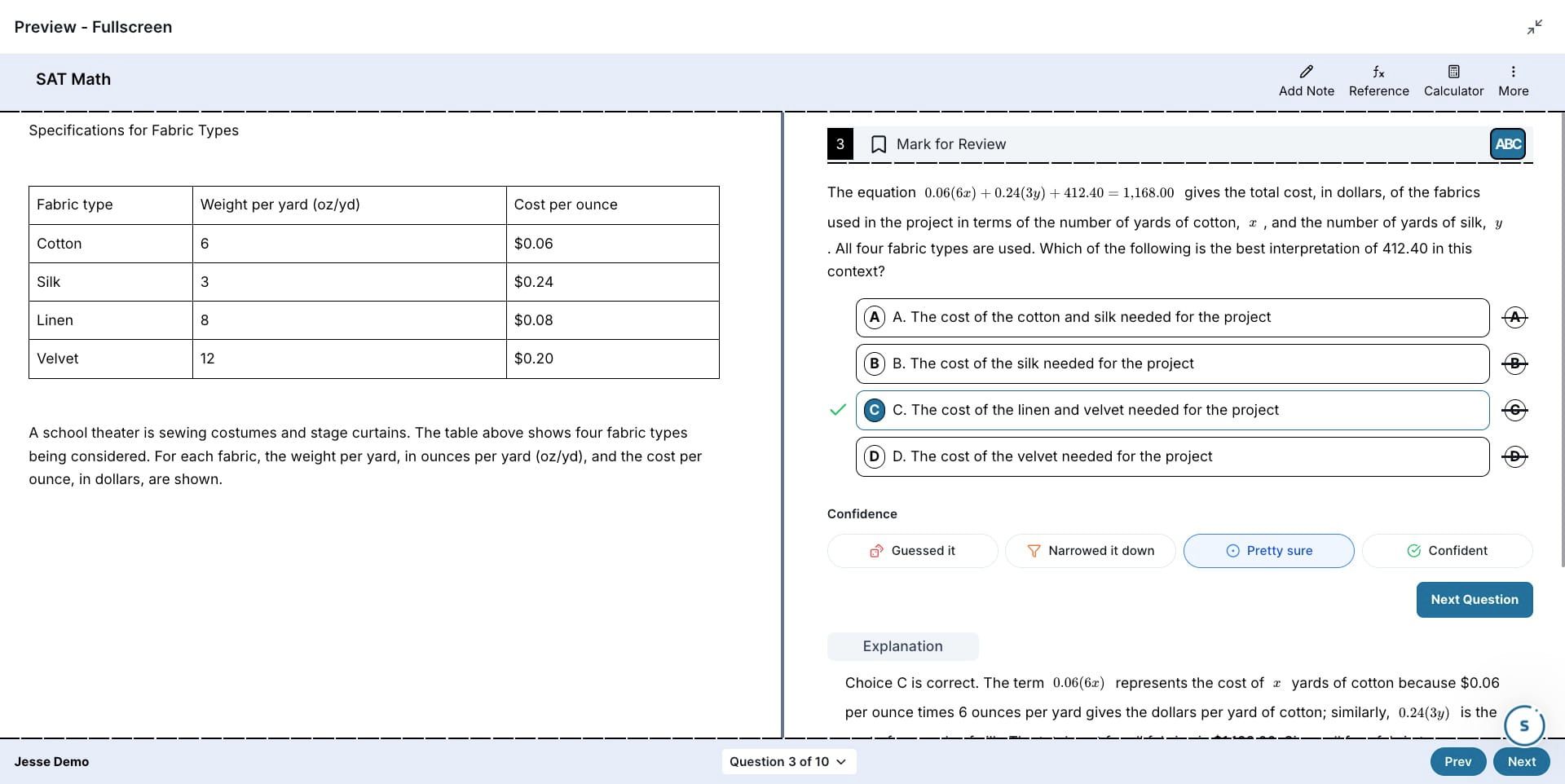
10. Move to the next question. Click Next Question to advance to the following question in the quiz.
11. You're all set! 🚀 The Confidence Level Picker is now enabled on your quiz. Students will be prompted to rate their confidence after each question, giving you richer data on their performance and self-awareness over time.
Was this helpful?
Still need help? Ask the team